Write your first FabCheck DRC deck
FabCheck is GDSFactory's DRC rule authoring package. A deck is a collection of named checks: for example, a minimum metal width or a minimum gap between shapes. You write those rules in Python, validate them, and compile them into a .fcd (FabCheck Deck) file.
FabCheck does not itself check a GDS layout. Its standalone commands validate and compile rule definitions. To evaluate those rules against geometry, a DRC engine needs both your compiled deck and your layout.
This tutorial follows write rules → validate → compile → run in GDSFactory+ Cloud → inspect findings. The authoring steps run on your computer with Python 3.11 or later. The execution steps require GDSFactory+, a subscription, and network access; Cloud uploads your layout for checking. You can complete authoring and compilation without submitting a Cloud job.
Use Cloud for this tutorial. The separate Local (Beta) DRC feature is not ready for this workflow in the 2.2 release; installing FabCheck does not enable it.
The example builds a two-rule deck, shows violations in a supplied GDS layout, and checks a corrected layout. The layer numbers and thresholds are teaching examples; replace them with your process's requirements when writing your own deck.
Download the tutorial files
Here's the link to download the source, layouts, and compiled example used in this tutorial:
| File | What you need it for |
|---|---|
| violations.gds | Open this layout first. It deliberately fails the two example checks. |
| corrected.gds | Check this layout afterward to see the same rules pass. |
| rules.fcd | Optional precompiled example: use this to try Cloud execution before compiling your own deck. |
| rules.py | Use this Python source for the authoring, validation, and compilation steps. |
Download the actual files with these exact names. If your browser displays the Python source, use Save page as and save it as rules.py, not an HTML or text file. If Windows hides filename extensions, you can enable View → Show → File name extensions in File Explorer so you can verify the filetypes.
Optional downloads: make_layouts.py recreates both layouts; violations.lyrdb and corrected.lyrdb are reference reports. You do not need those reports to run the tutorial: your own DRC runs should produce new results.
Put the files in your photonics-full project
- Open your existing photonics-full project in VS Code. If you do not have one, follow the photonics-full project instructions first. These synthetic layouts use layer
10/0directly and do not require a foundry PDK. - Open VS Code's Explorer using the file icon at the top of the left activity bar, or press Ctrl+Shift+E on Windows or ⌘+Shift+E on macOS. Find the project root: the folder containing
pyproject.toml,gpdk, and your project files. A workspace name in the window title is not the folder's filesystem path; right-click the project folder and choose Reveal in File Explorer on Windows or Reveal in Finder on macOS to locate it. -
Create a folder named
fabcheckdirectly inside that project root. Copy or move the source and layout downloads, plus the optional compiled example from your Downloads folder into it.Your files should look like this:
-
In VS Code, press Ctrl+P, type
fabcheck/violations.gds, and select the matching file. You can also expandfabcheckin Explorer and openviolations.gdsthere. If the file opens as text instead of a layout, right-click its editor tab, choose Reopen Editor With…, and select the GDSFactory+ layout viewer if it is available. - Confirm that the layout viewer shows three rectangles, then continue below. If the file is missing from Explorer, check that you copied it into the folder opened in this VS Code window, rather than a different project with the same name.
1. Install FabCheck
In Explorer, right-click the fabcheck folder and choose Open in Integrated Terminal. Use this folder as the working directory for the commands below, with the project's Python environment active. If your project interpreter is already selected, you do not need to select it again.
Check the interpreter before installing:
The version must be Python 3.11 or later, and the executable should be inside your project's .venv: .venv\Scripts\python.exe on Windows or .venv/bin/python on macOS.
If the terminal uses a different interpreter, open Python: Select Interpreter from the Command Palette (Ctrl+Shift+P on Windows or ⌘+Shift+P on macOS) and select the project's .venv. Open a new terminal and repeat the checks before installing. In the picker, the workspace .venv entry and Use Python from python.defaultInterpreterPath can point to the same interpreter; check the displayed path.
Once the terminal uses the correct environment, install the version used for this example with uv:
The command should output something like the following:

Your environment path, timings, and package counts may differ. This example shows + fabcheck==0.2.0 and a return to the terminal prompt with no error. If the package is already installed, uv may report that it audited the environment instead of installing it again.
This installs the authoring package used to validate and compile rules. uv pip installs into the active virtual environment without requiring the Python pip module.
2. Understand the two rules
Open the downloaded rules.py from the VS Code Explorer. It contains these two rules:
from fabcheck import Deck

deck = Deck("first-fabcheck-deck", units="um")
metal = deck.layer(10, 0, name="M1")

deck.rule(
    "M1.WIDTH",
    "M1 must be at least 0.2 um wide",
    violations=metal.min_width(0.2),
)
deck.rule(
    "M1.SPACE",
    "M1 shapes must be at least 0.3 um apart",
    violations=metal.min_space(0.3),
)
deck.layer(10, 0) reads GDS layer 10, datatype 0. M1 is a descriptive name, not an automatic lookup in your PDK. Use the actual layer/datatype pair from your layout.
units="um" makes lengths micrometres: 0.2 means 200 nm. Each deck.rule() gives a check a unique ID and a readable message. Its violations= expression identifies the failing geometry. Keep rule IDs stable so results are easy to recognize across runs.
3. Validate and compile
From the fabcheck folder, validate the source:
Validation prints:
Compile it to a new filename so the supplied rules.fcd remains available:
Compilation creates fabcheck/rules-recompiled.fcd and prints its path. Neither command runs the checks against a layout. At this point, you have completed the standalone FabCheck authoring workflow; continue below to execute the deck in GF+ Cloud.
The CLI loads the module-level deck object. Keep the source declarative: it does not need a deck.write() call. For a standalone Python script, deck.write("rules-recompiled.fcd") is an alternative export method.
Export refuses to overwrite an existing file. On a later compilation, choose a new output filename with -o or remove only the previous generated output you intend to replace. Editing the Python source alone does not update an already compiled deck.
If the terminal cannot find fabcheck, confirm that the selected Python environment is active. You can also invoke the CLI through that interpreter with python -m fabcheck.cli validate rules.py and python -m fabcheck.cli compile rules.py -o rules-recompiled.fcd.
Use a custom deck in the app
4. Run the example in Cloud
violations.gds contains one top cell, VIOLATIONS, with three rectangles on layer 10/0, on a 1 nm database grid. The corrected layout uses the top-cell name CORRECTED. These names match their filenames apart from letter case.
- A 2 µm long strip that is only 0.10 µm wide.
- Two 2 × 0.5 µm strips separated by a 0.15 µm gap.
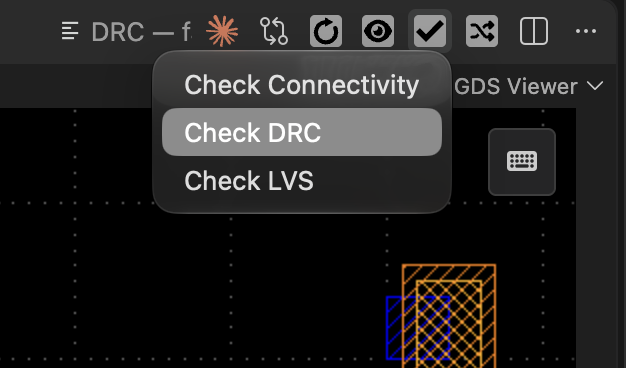
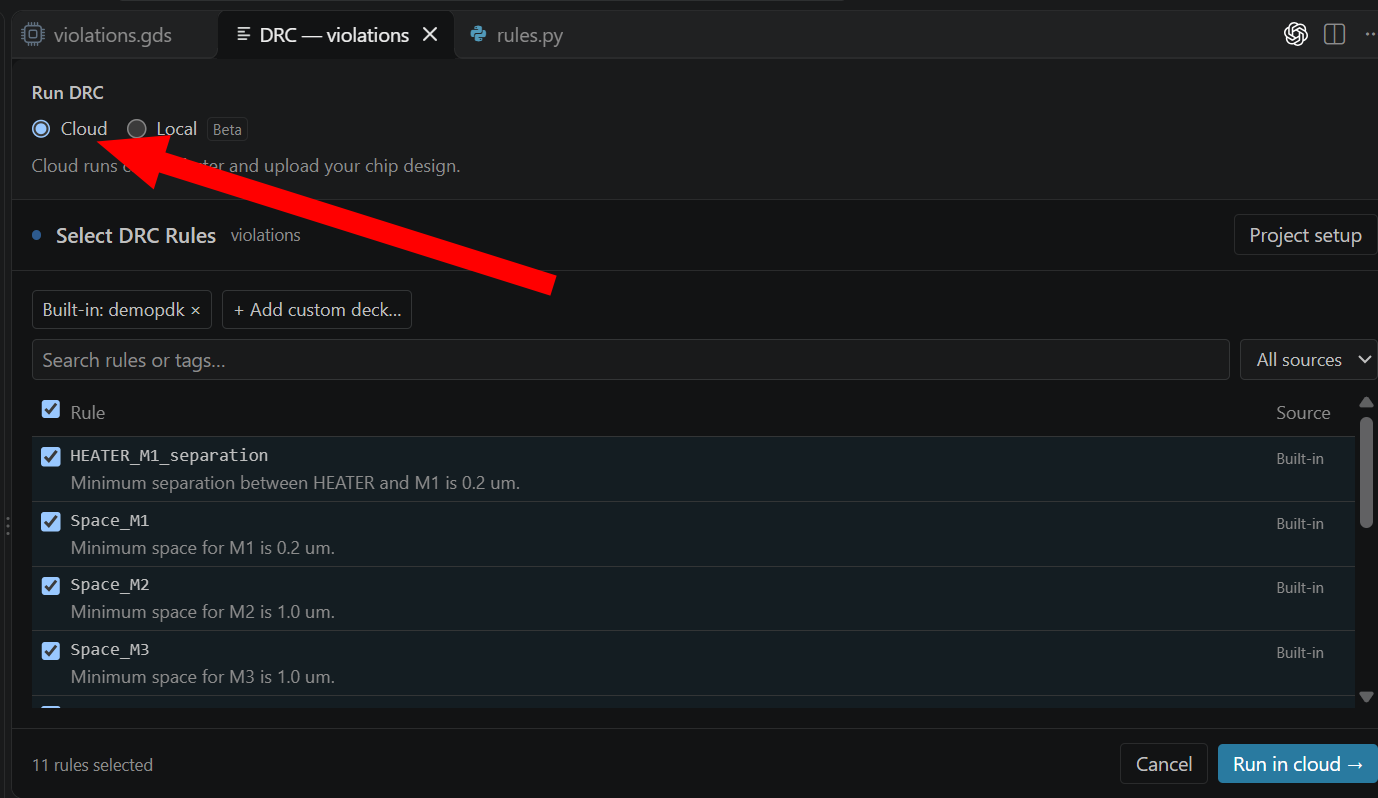
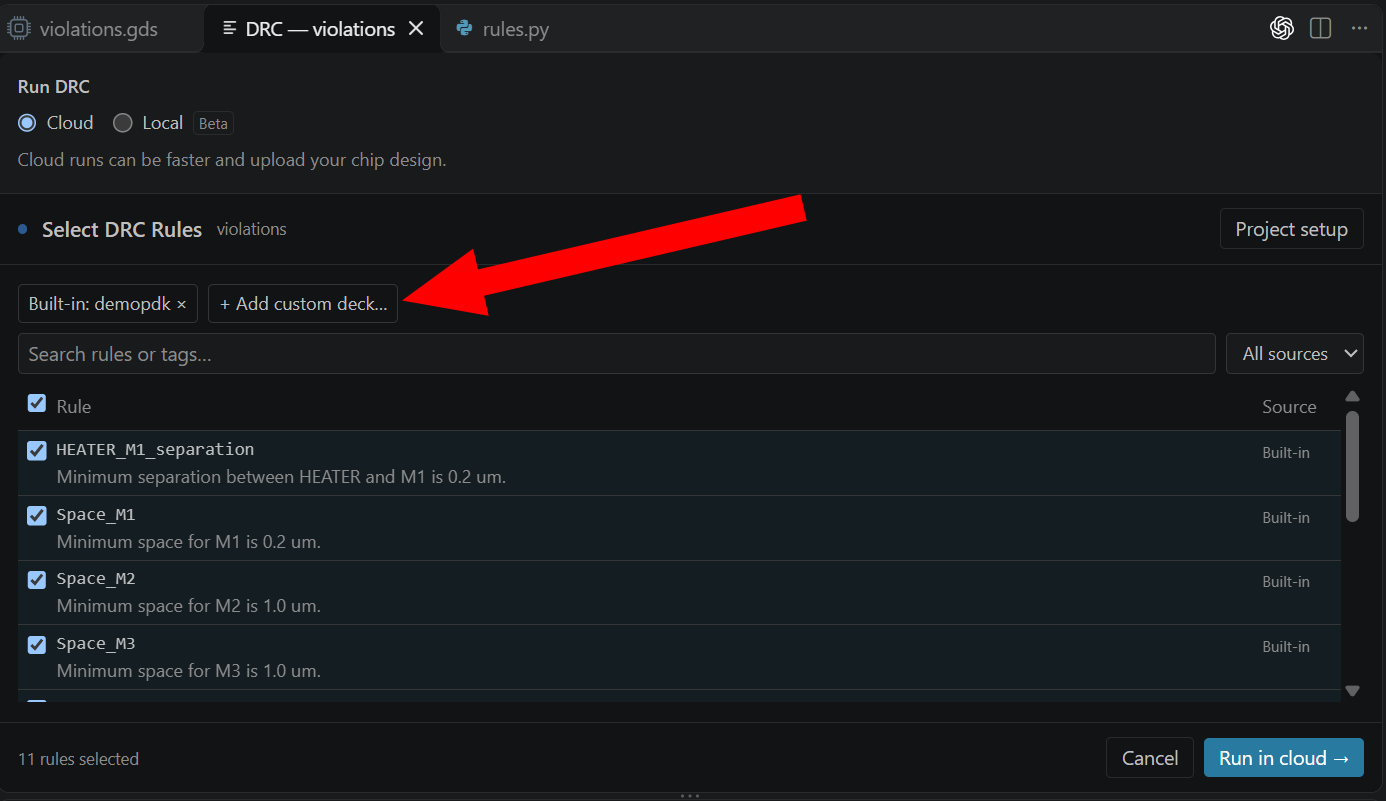
The app flow is open layout → Check DRC → Cloud → Add custom deck… → select your .fcd → select rules → Run in cloud.
-
Open
fabcheck/violations.gdsin the layout viewer using Explorer or Ctrl+P. You should see three rectangles: two wide strips separated by a narrow gap above a separate thin strip, as shown below.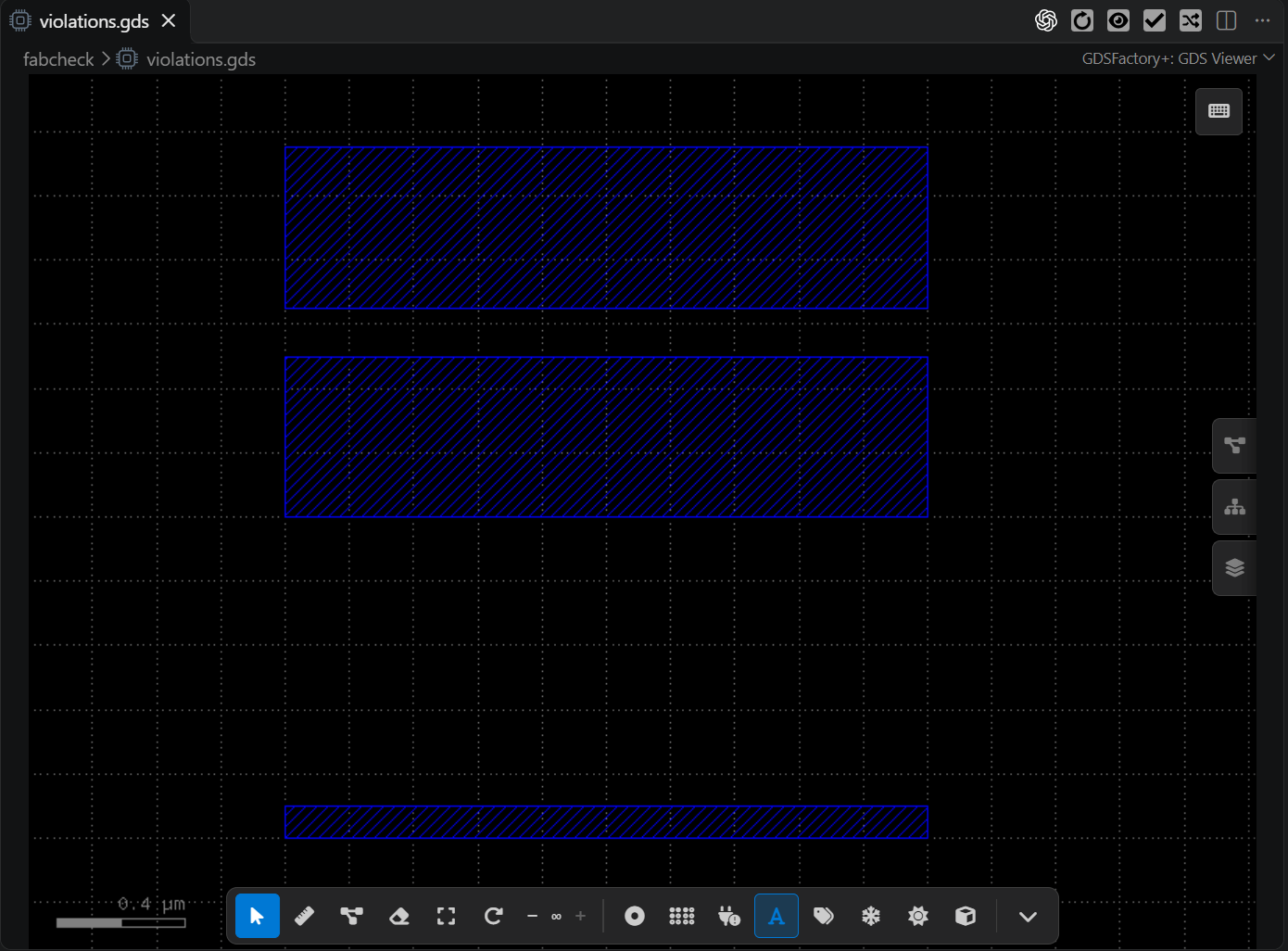
Click the checkmark menu in the viewer toolbar, then choose Check DRC.
-
Select Cloud at the top of the DRC panel. Complete the DRC project setup if prompted. Keep Cloud selected throughout this walkthrough.
-
Click Add custom deck… in the rule picker.
-
Under Compiled decks in workspace, select
fabcheck/rules-recompiled.fcd, the file you just compiled. Use Refresh if it is missing, or Choose another file… to browse for it. You can also drag a.fcdonto the panel. If you skipped authoring, select the suppliedfabcheck/rules.fcdinstead. Use Change file… to switch decks.The arrow points to
fabcheck/rules-recompiled.fcd, the file to select. This screenshot shows the picker before switching from the suppliedrules.fcd; click the circle besiderules-recompiled.fcdto select your newly compiled deck.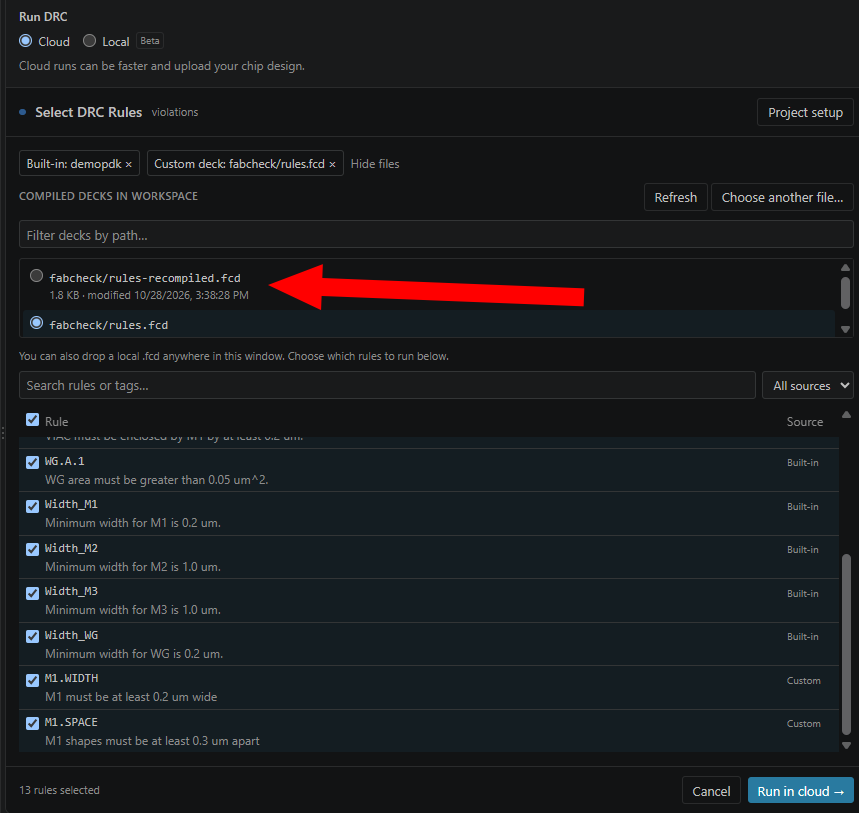
-
Remove the built-in deck from this run. Adding a custom deck does not replace the built-in rules: both sources can remain enabled. If you see a Built-in: demopdk chip above the rule list, click the × on that chip. Keep the Custom deck: fabcheck/… chip. This removes the built-in rule source from the run; it does not delete your DRC project or its configuration.
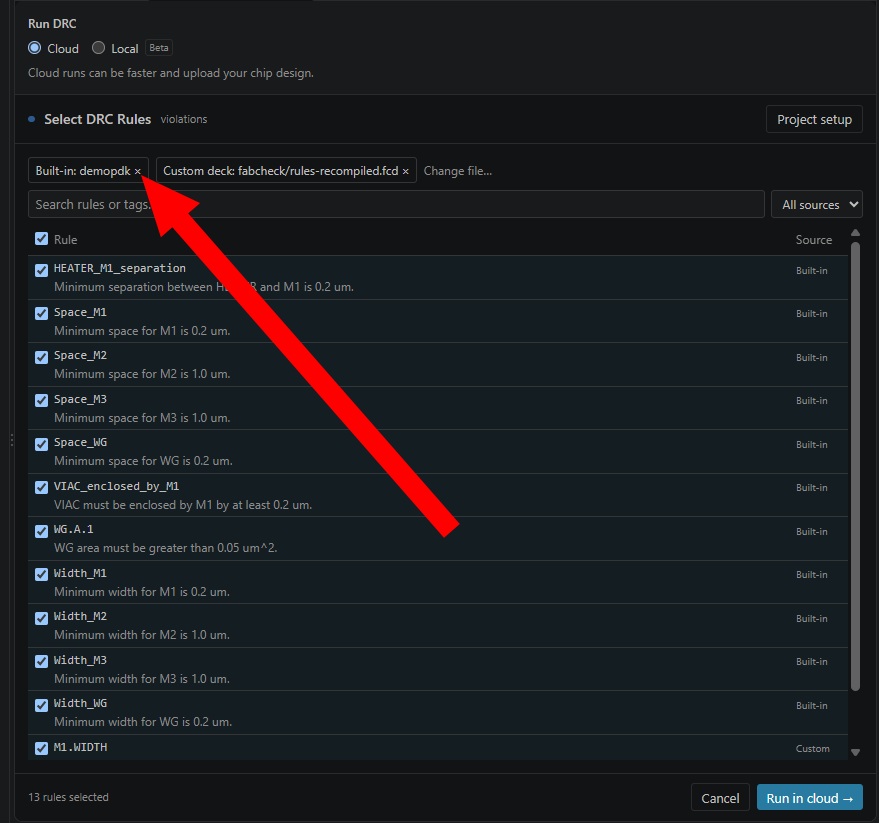
With the rule search empty and the source filter set to All sources, confirm that the list contains only M1.WIDTH and M1.SPACE, both checked and marked Custom, and the footer says 2 rules selected. If it says 13 rules selected, the demo PDK's built-in rules are still included. Filtering the list to show custom rules does not by itself remove the built-in source.
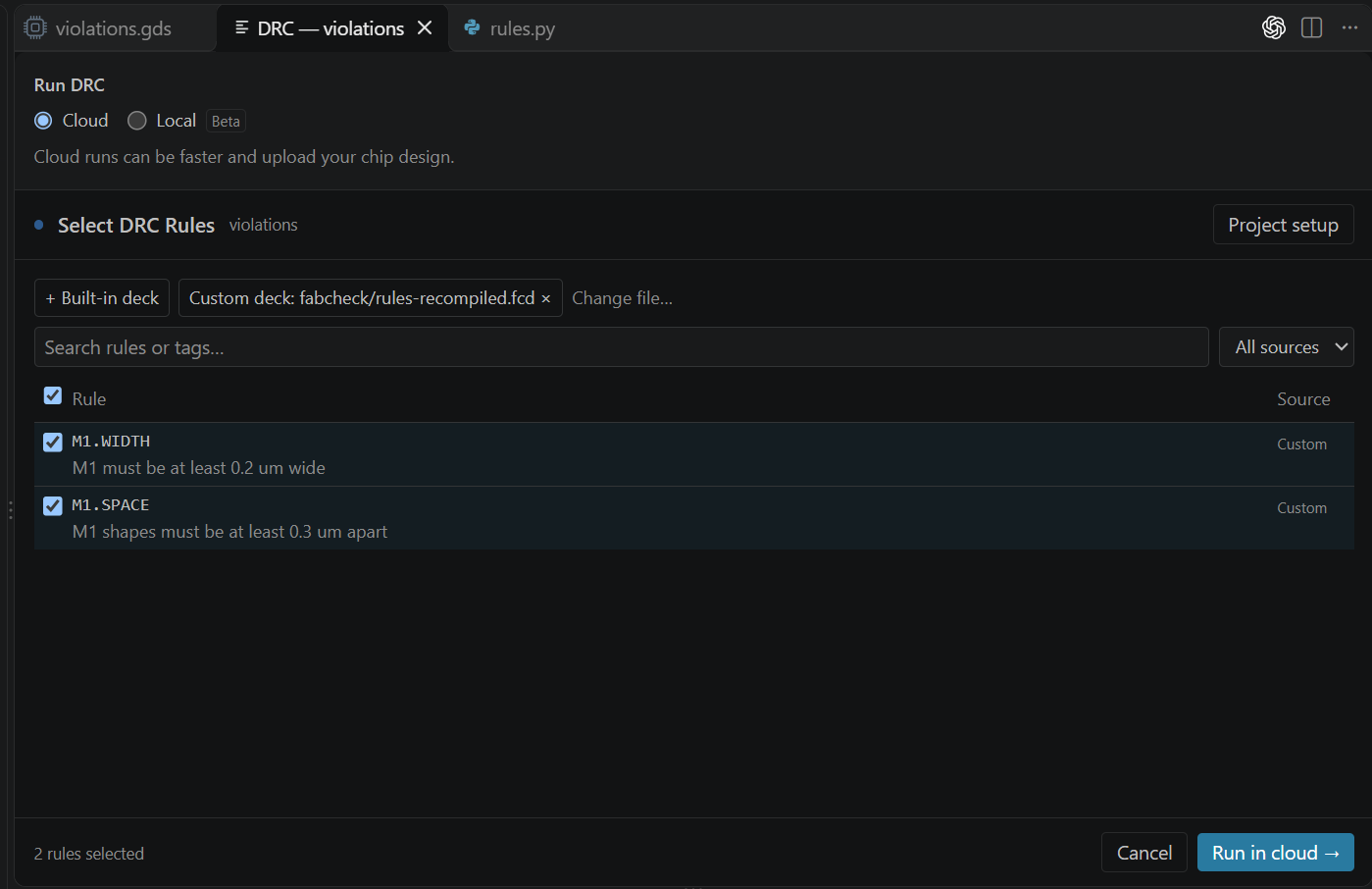
Your panel should now match the screenshot below: Cloud selected, Custom deck: fabcheck/rules-recompiled.fcd loaded, and only M1.WIDTH and M1.SPACE checked, both marked Custom. The + Built-in deck button shows that the built-in source is not enabled, and the footer confirms 2 rules selected.
-
Click Run in cloud. This submits your layout for checking. When the run completes, inspect the results by category and select a finding to highlight its location in the layout.
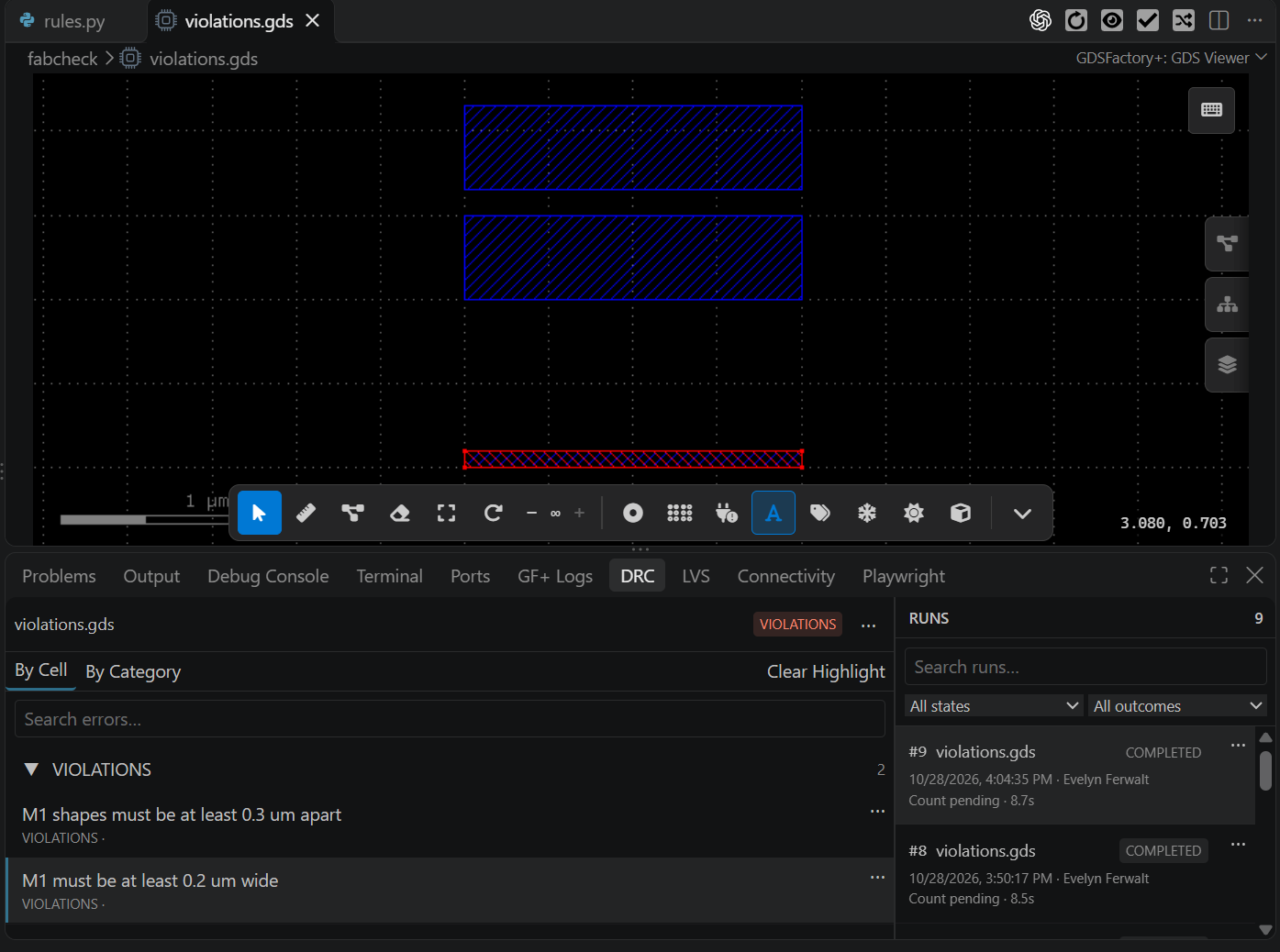
See Check for Design Errors for more illustrations of report navigation.
5. Read the findings and check the corrected layout
The supplied deck was executed with the compiled-deck DRC adapter to produce the reference reports below. Expect the same findings when you run the two custom rules on violations.gds:
| Rule | Requirement | Measured example geometry | Report items |
|---|---|---|---|
M1.WIDTH |
Width ≥ 0.20 µm | Bottom strip is 0.10 µm wide | 1 |
M1.SPACE |
Gap ≥ 0.30 µm | Upper strips are 0.15 µm apart | 1 |
The downloadable reference violation report records those two findings. The width marker covers the thin strip; the spacing marker identifies the gap between the upper strips. These dimensions come from the GDS coordinates; the report supplies the rule messages and marker geometry.
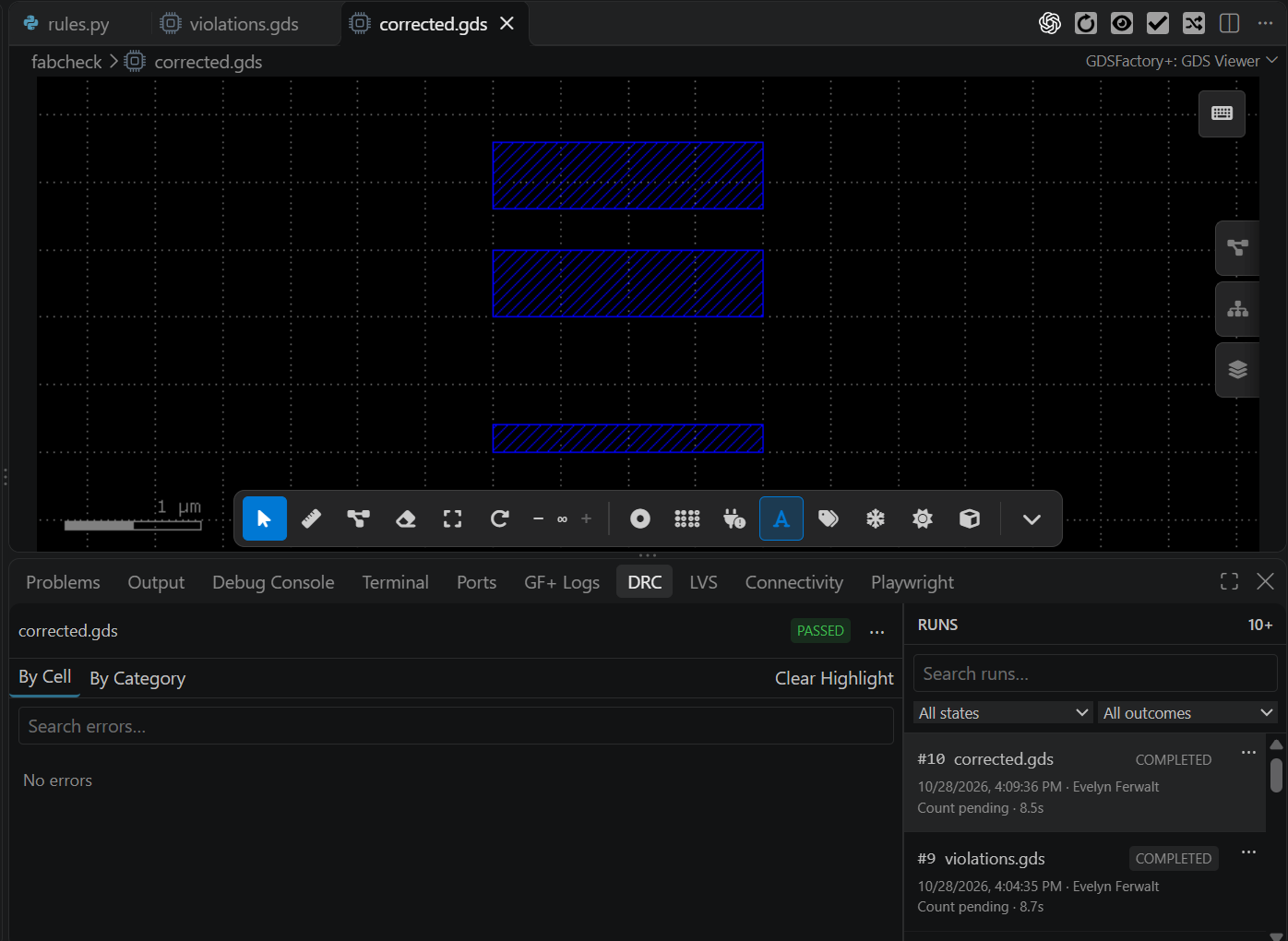
The corrected GDS widens the bottom strip to 0.20 µm and moves the upper strip to leave a 0.30 µm gap. Open fabcheck/corrected.gds in the viewer and repeat the Cloud steps with the same deck and both rules selected. Expect zero report items. The supplied corrected.lyrdb records that result from the compiled-deck adapter. Equality passes these minimum checks.
6. Change rules and adapt the deck
After changing a rule in rules.py, validate it, compile it to a fresh .fcd filename, and select that new file with Change file… before rerunning in Cloud. Confirm the selected deck path and rule count each time.
For a simple experiment, lower the width threshold to 0.05 µm and update its message to match. Compile to a new filename and run against violations.gds: expect the width finding to disappear while the spacing finding remains. Selecting the original example deck again should restore both findings.
Start by changing the layer/datatype and the two thresholds, then check a deliberately failing layout and a passing one. If a run unexpectedly reports no findings, confirm that the selected layer contains geometry and that both rules are selected. Empty input geometry is not evidence that you chose the correct layer.
Use thresholds that fit your layout grid. FabCheck defaults to rejecting lengths that cannot be represented on that grid; compilation cannot check this until a layout is supplied for execution.
For more operations and authoring patterns, see the FabCheck repository (repository access required). The example provenance records the engine revision and verification procedure used for this page.
Optional: combine custom and foundry rules
In Cloud mode, you can enable Built-in deck alongside your custom deck to combine the foundry rules with your own checks, or run either source on its own. Search by rule ID or tag and use the source filter to find the rules you want. This changes the set of checks, so the two-findings/zero-findings expectations above apply only when running the two example custom rules on their own.
Optional: recreate the example layouts
Download make_layouts.py, then run:
The script writes violations.gds and corrected.gds in the current directory. It uses integer coordinates with layout.dbu = 0.001 µm per database unit: a width of 100 is 0.10 µm, and a gap of 300 is 0.30 µm. It needs no foundry PDK.