Local Installation
Install GDSFactory+ on your local machine to design photonic chips directly from VSCode.
Prefer cloud? If you have access to GDSFactory+ Cloud workspaces, see the Cloud Setup guide instead.
Compatible Platforms
- macOS (Apple Silicon)
- Linux (glibc 2.28 and up, e.g. RHEL 8+, Ubuntu 18.04+, Debian 10+)
-
Windows (Win 10+, x64) you have two options:
- For the easiest installation, simply install from the VS Code Marketplace as usual
- Alternatively, if you prefer a bash terminal or want Linux's Python optimization, you can also use Windows Subsystem for Linux
System requirements
| Component | Minimum for light local use | Recommended for everyday local design |
|---|---|---|
| Native Windows RAM | 32 GB | 32 GB or more |
| macOS / Linux RAM | 16 GB | 32 GB or more |
| WSL RAM | 16 GB available to the Linux VM | 32 GB or more available to the Linux VM |
| Mac CPU | Apple Silicon, M1-class or newer | Modern M-series Pro-class or better, with at least 32 GB unified memory |
| Windows / Linux CPU | Modern Intel Core 5 / Core i5 or AMD Ryzen 5 class | Modern Intel Core i7 / Core Ultra 7 or AMD Ryzen 7 class; prioritize strong single-core and sustained performance |
| Storage | SSD with room for environments, PDKs, projects and results | SSD with capacity for retained projects and results |
| Graphics | Working WebGL rendering | Hardware-accelerated WebGL where available |
WSL uses its allocated RAM; check the .wslconfig memory limit
before considering a hardware upgrade.
Prerequisites
Before you begin, make sure you have:
- VSCode installed, or another compatible code editor (antigravity)
- macOS users: Xcode installed
- Windows users (optional): the most recent version of WSL
- Network access to PyPI (pypi.org) during project setup — choosing Setup Automatically installs the Python SDK into your project's
.venv. Air-gapped environments should pre-populate the.venvbefore the first use.
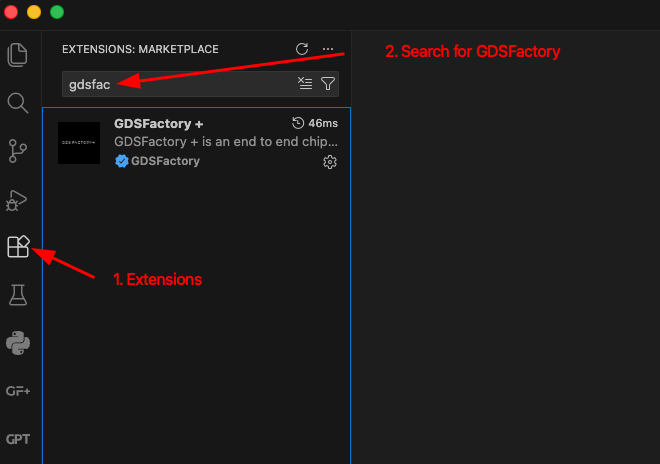
Step 1: Install the GDSFactory+ Extension
- Click the Extensions icon in the left sidebar
- Search for
GDSFactory+ - Click Install
Step 2: Open the Sample Project and Verify Your Setup
Open the sample project you received, then click the GF+ icon to open the extension panel. The Status section shows several checks:
For a project created with New Project, choose Setup Automatically in the welcome notification or in Settings → Status to start setup. Dismissing the welcome leaves setup idle; you can start it later from Settings.
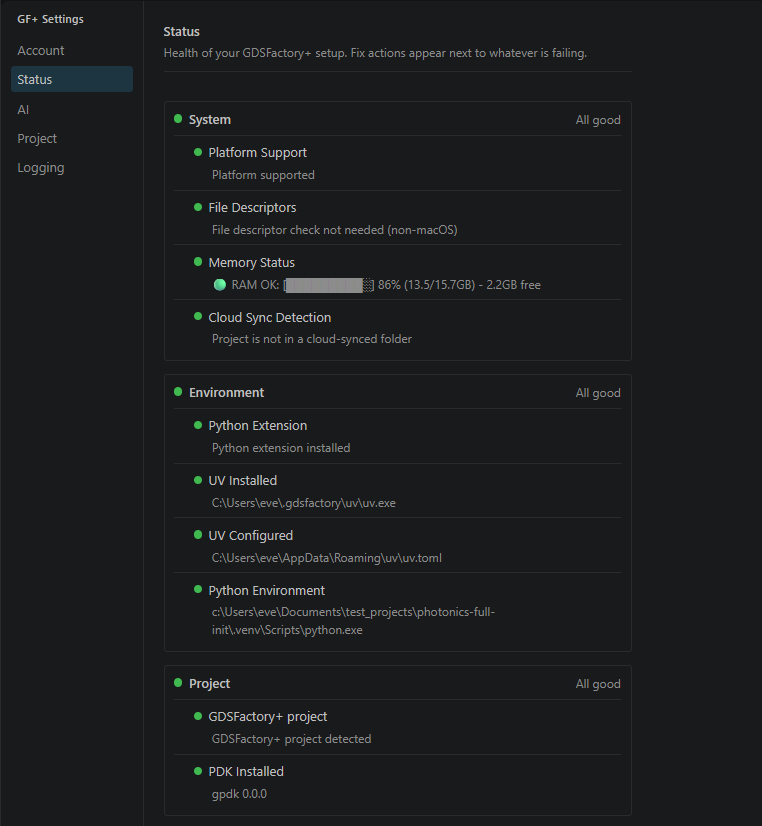
✅ All green? You're ready to go! Skip to Next Steps.
❌ Any red checks? Follow the instructions in the panel to fix them. You may need to restart VSCode after making changes.
Common Setup Issues
UV Not Installed
GDSFactory+ uses uv to manage Python environments.
How to install: Follow the official uv installation guide.
API Key Missing
You can authenticate by signing in via the Portal instead of using an API key. Click Sign in in the Account section of the GF+ Settings panel, or run GDSFactory+: Sign In from the Command Palette. A browser window opens the Portal to complete sign-in.
To use an API key instead:
If you have an account:
- Go to the GDSFactory+ Customer Portal
- Click API Keys in the left sidebar
- Click + New API Key
- Name your key and save it
- Click the eye icon to view the key
- Copy the key and paste it into the GF+ extension when prompted
Don't have an account?
- Ask your organization admin to send you an invitation — you need an invite before you can create an account
- If your organization doesn't have a subscription yet, sign up here
Organization Admins: You can invite users and grant admin privileges from the portal. Watch this video for a walkthrough.
PDK Not Installed
GDSFactory+ automatically manages dependencies using the pyproject.toml file in your project folder.
The sample project includes these lines:
This tells GDSFactory+ to use the Cornerstone PDK.
Python Environment Setup
GDSFactory+ uses the project's .venv environment, including environments created with python -m venv. The environment does not need to have been created by uv. Worker Health checks whether its interpreter runs and its runtime dependencies satisfy the required versions.
Use Select Python interpreter to choose the project's .venv interpreter. To recreate the environment, click Remove .venv & reload. This deletes the project's .venv and build folders, reloads VS Code, and starts setup automatically with visible progress. A failed setup remains available to retry with Setup Automatically in Settings → Status.
GDSFactory+ runs the worker with the project's own Python interpreter rather than an embedded interpreter. There is no fixed Python 3.12 version-match check: the interpreter must run, and the environment must satisfy the project's Python and package requirements. Different minor or patch versions alone do not produce an interpreter-mismatch error.
Extension Version
If the VSCode extension is older:
- Update the VSCode extension from the Extensions menu
Still having issues?
- Make sure you've opened the correct folder (File → Open Folder → select
gdsfactory_sample_project) or create a new project from a template using the New Project button in the GF+ panel
Optional Additional Windows Setup (WSL)
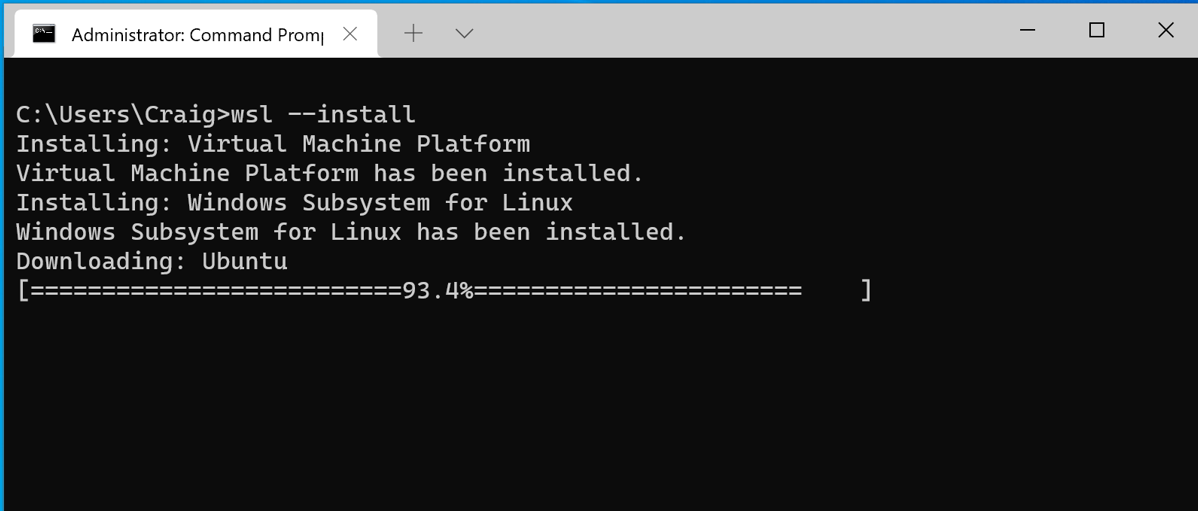
Install Windows Subsystem for Linux by running this in PowerShell (Admin):
VS Code Integration
Install VS Code on Windows, then:
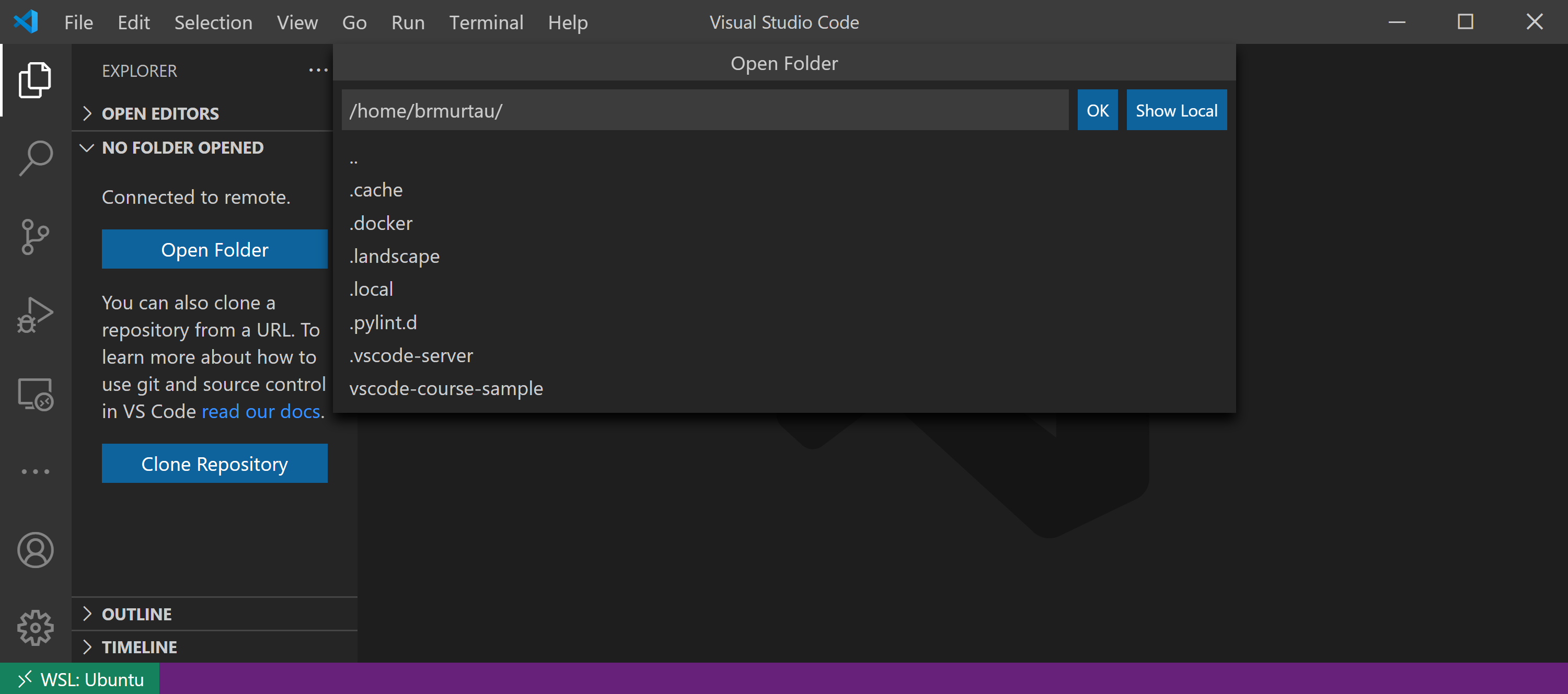
- Install the Remote - WSL extension
- In WSL, run
code .to open VSCode connected directly to Linux
You should see WSL indicated at the bottom-left of the VS Code window.
Where to Store Your Code
For best performance, keep your repos inside WSL, not on the Windows filesystem.
Good:
Avoid:
Next Steps
Once all status checks are green, you're ready to start designing!
Get started:
- Follow the Quickstart Guide to design your first circuit!
Use a different PDK:
- Learn about working with PDKs to explore other foundry PDKs
Need help?
- Join the GDSFactory Community Slack