Simulate a Waveguide Bend with zapFDTD
Introduction
Let’s simulate a 90° silicon Euler bend with zapFDTD through gsim. We’ll use a standalone notebook to define the bend, preview the 3D simulation, run it on GDSFactory+ servers, and inspect its wavelength response and field intensity.
Open the notebook and select your environment
- Start with a working GDSFactory+ environment and cloud simulation access. If you haven’t set up your environment yet, follow the installation guide.
- In the GF+ sidebar, open the hamburger menu (☰) and click New Simulation.
-
Find the zapFDTD 3D Euler Bend notebook (
fdtd_zapfdtd_3d_bend.ipynb), select it, and click Download Simulation. Save the notebook in your project folder; it opens in VS Code. -
The photonics-full sample project is a convenient starting point; follow the project-creation instructions at the beginning of that guide. The notebook explicitly activates the generic PDK bundled with
gdsfactory, so it can also run in another GDSFactory+ project with the required Python dependencies and cloud simulation access. - Before running any cells, use Select Kernel at the top right of the notebook to choose the project’s Python virtual environment (venv). This environment should contain
gdsfactoryandgsim, along with the notebook’s plotting dependencies.
This tutorial runs the cells one by one so we can inspect each stage. The notebook is organized such that also you have the option to select Run All to execute all cells in order and immediately start the simulation job with preloaded defaults, which may be useful for quick iteration of different parameters. Prepared inputs and downloaded results are saved relative to the kernel’s working directory; you can also use absolute paths.
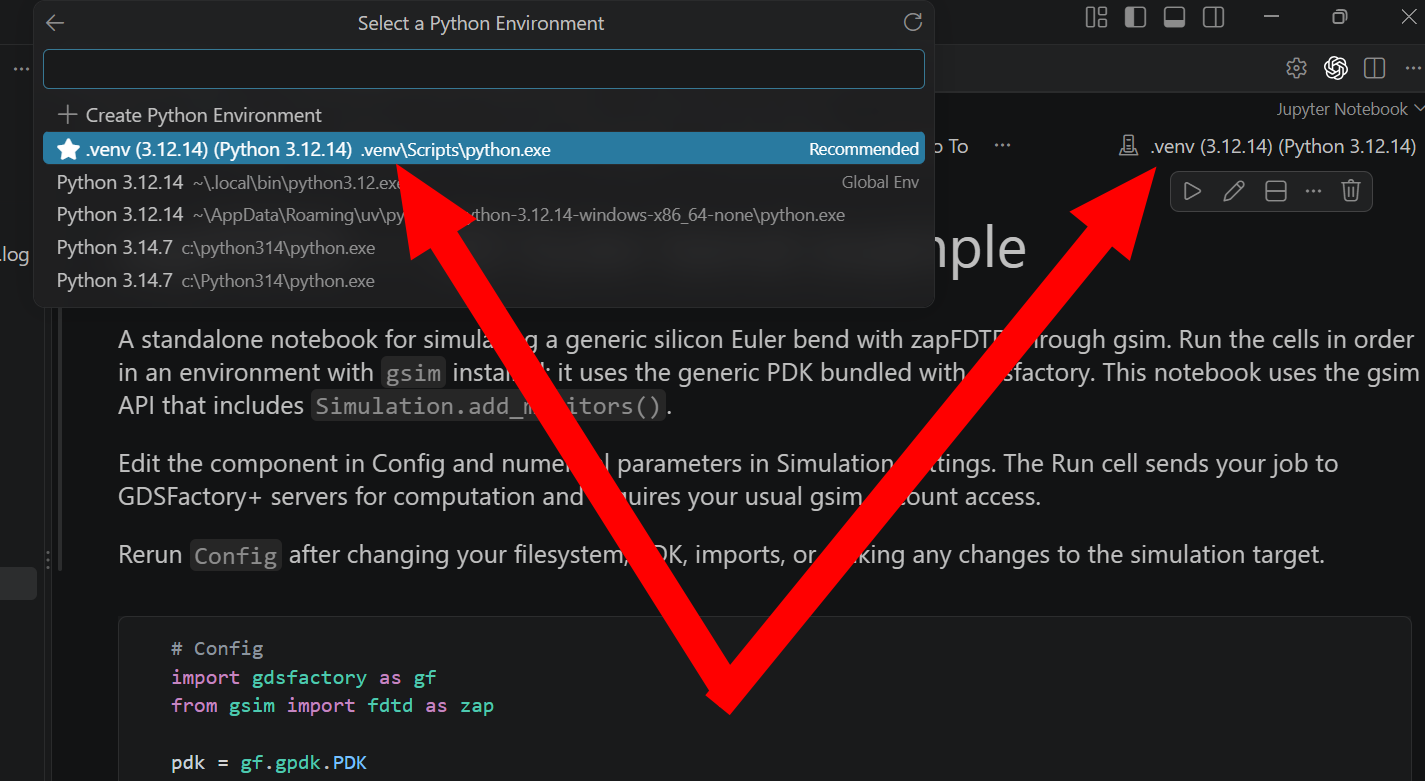
This notebook requires gsim>=0.8.0; to update an older project environment, run uv add "gsim>=0.8.0" "pdk-schema[sympy]~=0.3.0" in the command line from your project folder, then restart the notebook kernel.
Create the Euler bend
The Config cell below activates the generic PDK bundled with gdsfactory and creates a 90° bend using the strip cross-section.
Config cell:
import gdsfactory as gf
from gsim import fdtd as zap

pdk = gf.gpdk.PDK
pdk.activate()

component = gf.components.bend_euler(
    radius=10.0,
    angle=90.0,
    cross_section="strip",
)
Here, radius=10.0 sets the bend’s radius parameter in micrometers. Its two optical ports are o1 and o2; we’ll launch light at o1 and measure the response at both ports.
Choose the simulation settings
Run the Simulation Settings cell with the starting values below.
Simulation Settings cell:
source_port = "o1"
wavelength_um = 1.55
wavelength_span_um = 0.10
num_wavelengths = 11
cell_size_nm = 60.0

background_material = "SiO2"
material_overrides = {"si": 3.47, "SiO2": 1.44}

prepare_path = "zapfdtd_bend_inputs"
results_path = "zapfdtd_bend_results"
Settings reference:
| Setting | Starting value | Meaning |
|---|---|---|
source_port |
"o1" |
Port excited by the source; all other optical ports are measured by default, along with reflection at the source port |
wavelength_um |
1.55 |
Center wavelength in µm |
wavelength_span_um |
0.10 |
Total wavelength span in µm |
num_wavelengths |
11 |
Number of sampled wavelengths |
cell_size_nm |
60.0 |
Spatial grid spacing in nm. A finer spatial grid can resolve the geometry and fields more accurately, but requires more computation and memory |
background_material |
"SiO2" |
Material surrounding the device |
material_overrides |
si: 3.47, SiO2: 1.44 |
Fixed refractive indices used in this example; see the gsim material library for available material models |
prepare_path |
"zapfdtd_bend_inputs" |
Directory for prepared simulation inputs |
results_path |
"zapfdtd_bend_results" |
Parent directory for downloaded results. It does not need to match prepare_path: preparation writes the inputs, while the run downloads its outputs to this independently selected location |
These wavelength settings cover 1.50–1.60 µm. The material overrides use lossless, fixed refractive indices, so this example does not model material dispersion or absorption across that range.
Prepare and inspect the 3D simulation
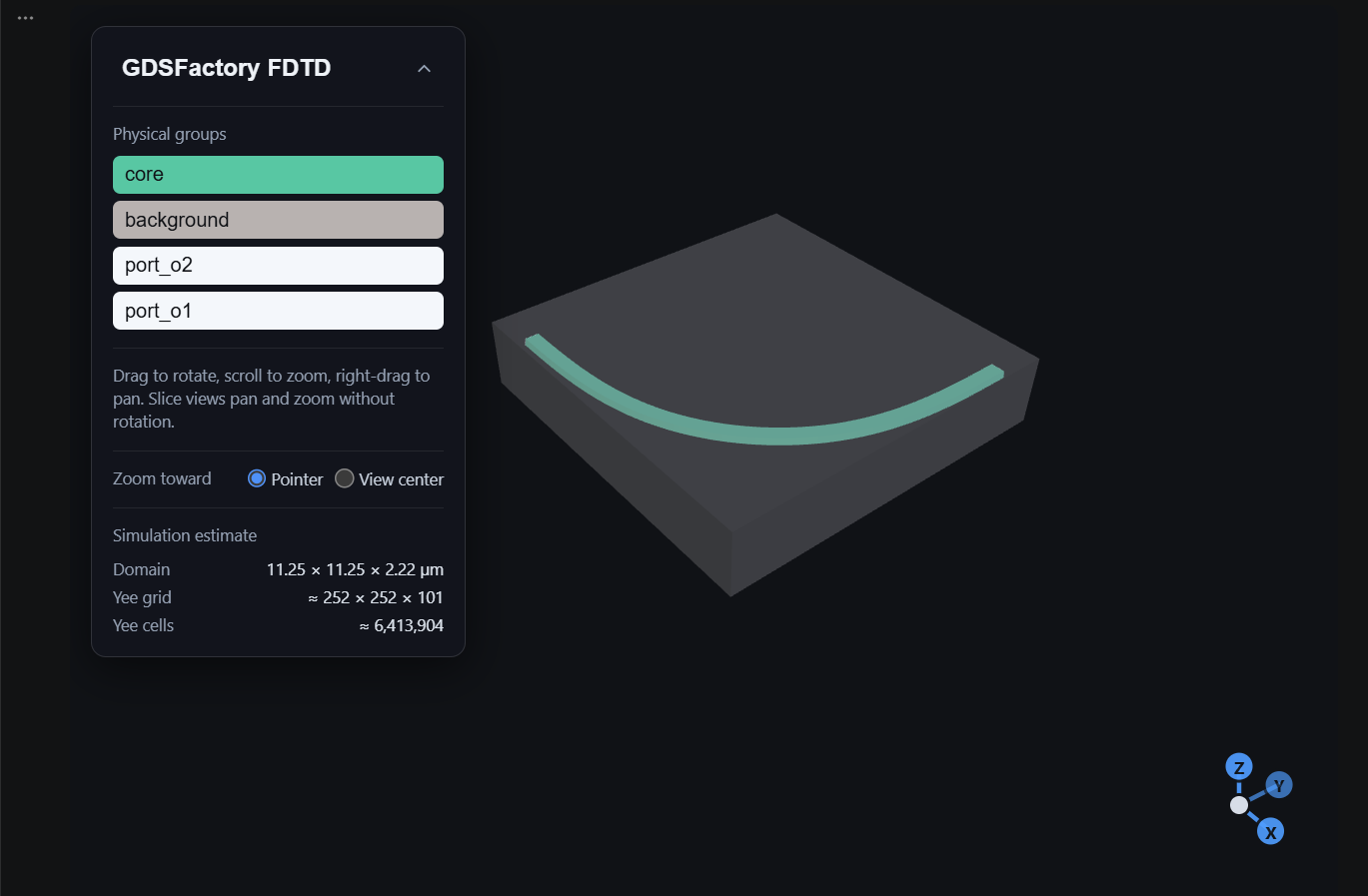
Next, run Prepare and preview. This cell configures the simulation, writes its inputs locally, and opens a 3D geometry preview.
Prepare and preview cell:
sim = zap.Simulation(pdk=pdk)

sim.materials(
    background=background_material,
    overrides=material_overrides,
)

sim.source(
    port=source_port,
    wavelength_um=wavelength_um,
    wavelength_span_um=wavelength_span_um,
    num_wavelengths=num_wavelengths,
)

sim.geometry(component)
sim.domain(
    padding_x=(0.0, 1.0),
    padding_y=(1.0, 0.0),
)
sim.solver(cell_size_nm=cell_size_nm)
sim.add_monitors()

artifacts = sim.write(prepare_path)
print("Prepared:", artifacts.config_path)

sim.plot_3d()
The domain includes perfectly matched layers, or PML, to absorb outgoing waves at its boundaries. For this bend, the explicit padding adds space on the sides without guided ports while leaving the port-bearing sides unpadded.
Due to a known bug in gdsfactory zapFDTD, it is currently recommended to explicitly define padding to keep port-monitor windows inside the non-PML region.
sim.add_monitors() adds field-intensity monitors at the optical ports and an XY overview through the geometry’s midpoint. These will let us inspect the fields after the simulation finishes.
In the 3D preview that results from this code block, check that the bend has the expected shape and inspect its vertical structure and surrounding domain. You should also see a printed path to the prepared configuration. This cell prepares the simulation locally; the next cell submits the cloud job.
Run the cloud simulation
Once you’re happy with the preview, run the Run cell. It submits the simulation to GDSFactory+ servers and downloads the results beneath results_path. Check your organization’s simulation-credit allowance and billing terms before submitting a job.
Run cell:
zapFDTD excites one input at a time. With o1 excited, this run calculates S11, the reflection toward o1, and S21, the transmission to o2: the first column of the two-port scattering matrix.
Design question: can we use this setup’s symmetry to infer the response for excitation at o2, and do nonlinear effects need to be considered?
Yes, for this ideal fixed-index model: reciprocity gives S12 = S21, and the bend’s port-exchange symmetry supports S22 = S11 when materials, boundaries, port modes, and reference planes map consistently; nonlinear effects are not included.
In code, fill the second column by copying the complex coefficients with both port labels exchanged, preserving phase and using consistent modal conventions.
Bonus: Optional symmetry reconstruction, after the run completes:
s11 = result.s_parameters[("o1", "o1")].values
s21 = result.s_parameters[("o2", "o1")].values

# Keys are (receiving_port, source_port).
reconstructed_s_parameters = {
    ("o1", "o1"): s11.copy(),
    ("o2", "o1"): s21.copy(),
    ("o1", "o2"): s21.copy(),  # Inferred from reciprocity
    ("o2", "o2"): s11.copy(),  # Inferred from port-exchange symmetry
}
This dictionary contains arrays across the sampled wavelengths; its second column is inferred from symmetry. Reciprocity alone establishes equal forward and reverse transmission, while equal reflections require the additional port-exchange symmetry. See waveguide reciprocity and symmetry-based matrix reconstruction for details.
To calculate the reverse response directly, change source_port to "o2" in Simulation Settings, choose a separate results directory, and rerun settings, preparation, and execution. Keep the physical port names unchanged: selecting the other source obtains the second column without renaming the ports or inverting the matrix.
Read the response and field plots
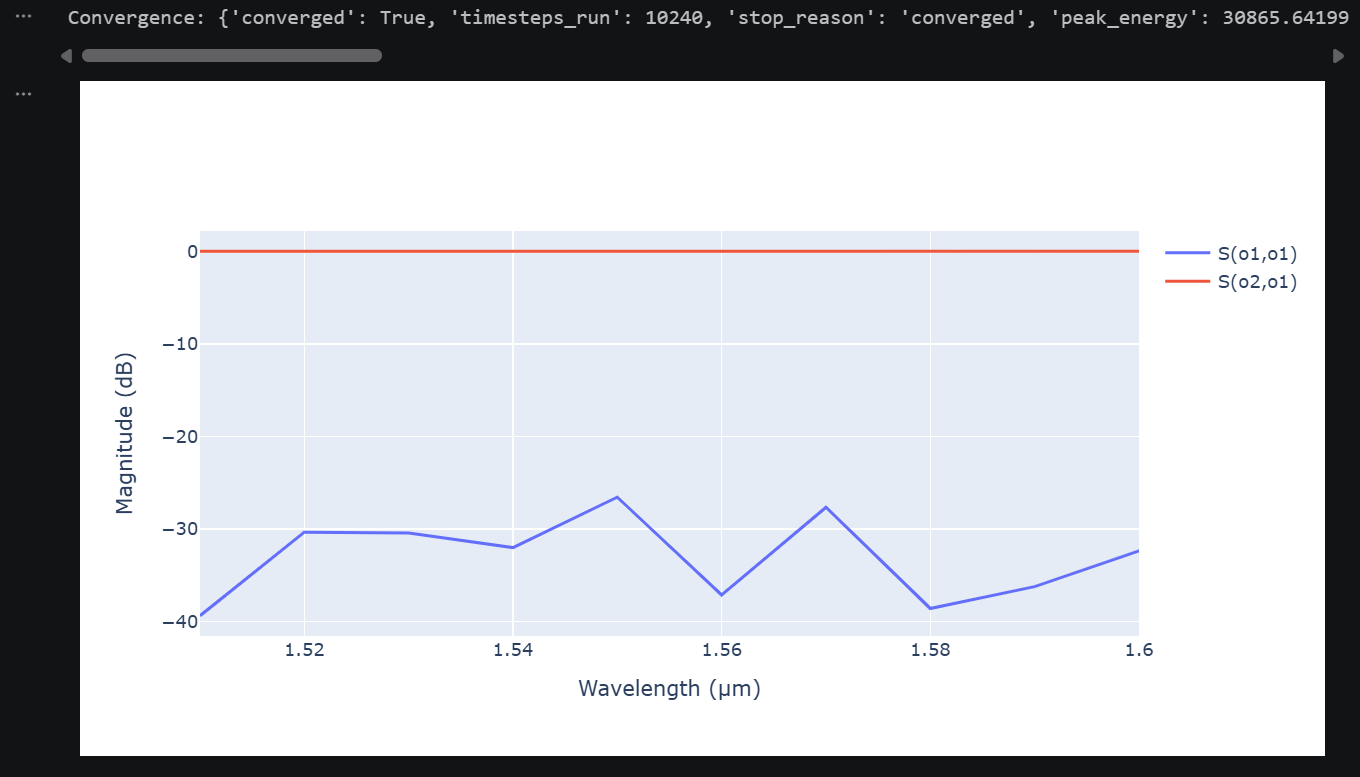
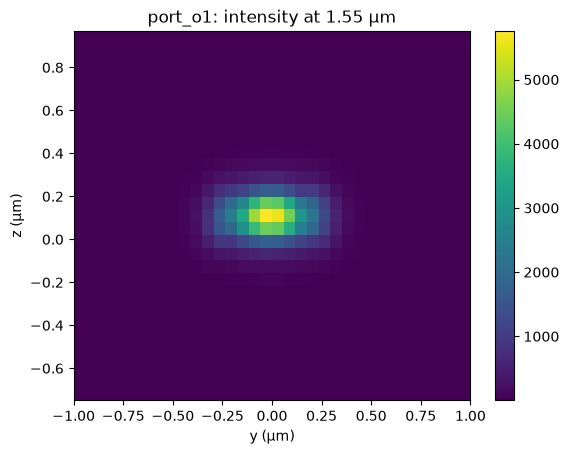
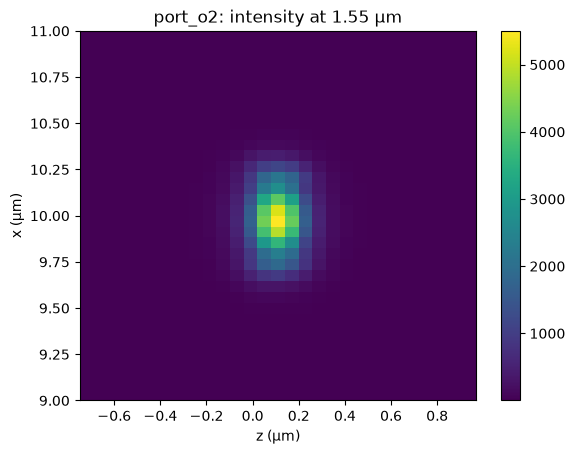
Run the Results cell to display convergence information, the wavelength response, and each monitor’s field-intensity heatmap.
Results cell:
from IPython.display import display
import matplotlib.pyplot as plt

print("Convergence:", result.convergence)
display(result.plot_plotly())

for monitor in result.monitors.values():
    fig, ax = monitor.plot_heatmap(
        wavelength_um=wavelength_um,
    )
    display(fig)
    plt.close(fig)
First, inspect the convergence information and any termination messages. A completed job should still be checked for whether the fields decayed sufficiently; the convergence report and the grid-refinement check in the grid-refinement appendix address different aspects of numerical reliability.
The response plot uses wavelength in micrometers on the horizontal axis and S-parameter magnitude in decibels on the vertical axis. Its labels follow S(receiving_port, source_port).
Response labels for excitation at o1:
| Trace | Interpretation |
|---|---|
S(o1,o1) |
Reflection back into the input port mode |
S(o2,o1) |
Transmission into the output port mode |
The plotted magnitude is 20 × log10(abs(S)). For the power-normalized port modes, transmission near 0 dB means that most incident power reaches the selected output mode; increasingly negative reflection values indicate less power returning in the selected input mode.
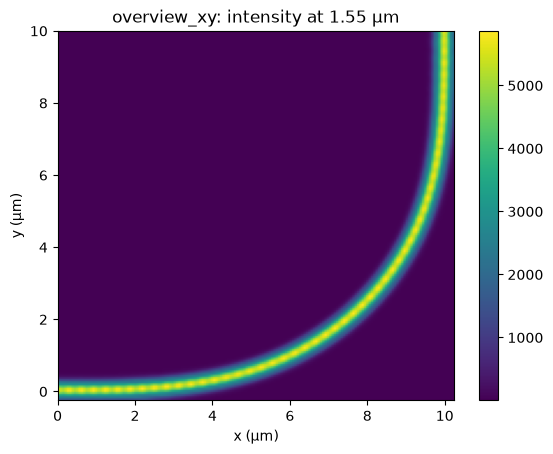
Next, inspect the heatmaps at the center wavelength, 1.55 µm. The XY overview shows the driven intensity through the bend, while the port cross-sections show the transverse intensity at each port. These are driven fields from the complete simulation, so the input-side field can contain both incident and reflected contributions.
Use the XY plot to follow the field around the turn and inspect any intensity extending into the surrounding material. Use the response plot to quantify coupling into the port modes; a bright region in a heatmap alone does not establish transmission efficiency.
Conclusion and next steps
You’ve defined an Euler bend, prepared and previewed its 3D simulation, run zapFDTD in the cloud, and inspected its response and fields. You can now adapt the same workflow to another component or explore the other FDTD examples in the GDSFactory+ documentation.
Optional appendix: Check sensitivity to grid spacing
To see how much the spatial grid affects your answer, you could repeat the same physical simulation with finer grid spacing. Keep the bend, source, wavelength samples, and material settings fixed. Please keep in mind, a finer mesh will also increase computational load.
After the baseline run, preserve its result object so you can compare it with the next run.
Preserve the baseline:
In Simulation Settings, change cell_size_nm from 60.0 to 45.0 and give the preparation and results directories distinct names.
Replacement settings for the finer-grid run:
cell_size_nm = 45.0
prepare_path = "zapfdtd_bend_inputs_45nm"
results_path = "zapfdtd_bend_results_45nm"
Rerun Simulation Settings, Prepare and preview, Run, and Results. Compare the transmission and reflection curves with the baseline over the same wavelengths, using the same plot scales.
If the response still changes appreciably, repeat with a finer grid, such as 30 nm. Judge the differences against the accuracy needed for your design, and check that the absorbing boundaries remain adequate as the grid changes.
Small changes across successive refinements provide evidence of grid convergence. Very weak reflection can be particularly sensitive, so assess the actual coefficient or power differences as well as their appearance on a dB plot.
Appendix: Common notebook issues
Imports fail or the wrong packages load. Check the kernel selected at the top right of the notebook. Look for the project’s Python virtual environment (venv), often shown as venv or .venv, and select it. It should contain gdsfactory, gsim, and the plotting dependencies. Restart the kernel if necessary, then run the cells from Config onward. Remember, This notebook requires gsim>=0.8.0; to update an older project environment, run uv add "gsim>=0.8.0" "pdk-schema[sympy]~=0.3.0" in the command line from your project folder, then restart the notebook kernel.
Cloud authentication or access fails. Check that your simulation account is authenticated and has access to cloud execution in the selected environment. After resolving access, rerun the Run cell; also rerun preparation if you changed the simulation settings.
Inputs or results appear in an unexpected directory. Relative paths are resolved from the kernel’s working directory, which may differ from the folder you expected. Run the cell below to print that directory and locate the input and results folders beneath it. You can also set prepare_path and results_path to absolute paths to choose their locations explicitly.
Print the working directory:
The preview or results still show an earlier configuration. Editing a cell does not update objects already created in memory. If you change the component, PDK, or imports, rerun from Config onward. If you change the source, wavelength, grid, materials, or paths, rerun from Simulation Settings onward. Changes to domain padding or monitors require rerunning Prepare and preview, Run, and Results. Changes only to plot formatting or the displayed heatmap wavelength require rerunning Results. After switching or restarting the kernel, run all cells again from Config.