Check for Connectivity Errors - LVS
LVS (Layout vs. Schematic) verifies that your physical GDS layout is electrically equivalent to your schematic. It compares the connectivity extracted from the layout against the netlist declared in the schematic and reports any mismatches — missing connections, extra connections, wrong components, shorts, and dangling ports.
Video tutorials
Check Connectivity
Learn how to check for overlapping waveguides and orphan ports, then locate the findings in your layout.
Layout vs. Schematic (LVS) Checks
Learn how to compare your physical layout with the schematic and review connectivity mismatches.
Design-to-verification workflow
A circuit travels through four stages before LVS runs:
- Mosaic — draw your schematic in the GDSFactory+ schematic editor. The schematic is saved as a
.gschfile, a flat JSON document that records component instances and wire connections. - Livewire — open the layout editor to arrange the components and route their physical connections. Layout information is saved in the same
.gschfile. - Build to GDS — GDSFactory+ compiles the
.gsch(or.pic.yml) into a GDS layout: routing runs, pads are placed, and all geometry is exported to a.gdsfile. - LVS check — elvis extracts electrical connectivity from the GDS polygons and compares it against the schematic netlist. Any mismatch is written to a
.lyrdbreport file and displayed in the GDS viewer.
Run an LVS check
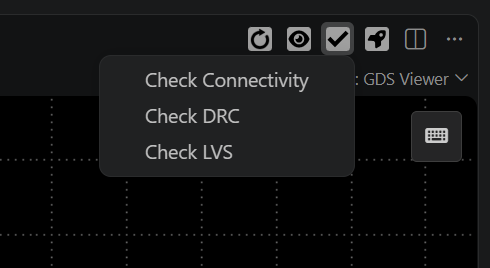
In the GDS View tab, click the checkmark dropdown (✓) in the top right toolbar and select Check LVS.
Wait for the checking process to finish. Results appear in the DRC Results sidebar under the LVS tab, showing the number of findings grouped by error category.
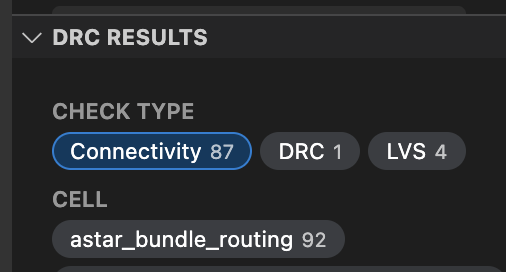
Click on any finding to zoom to the relevant geometry in the layout viewer.
Understanding LVS results
Passing LVS
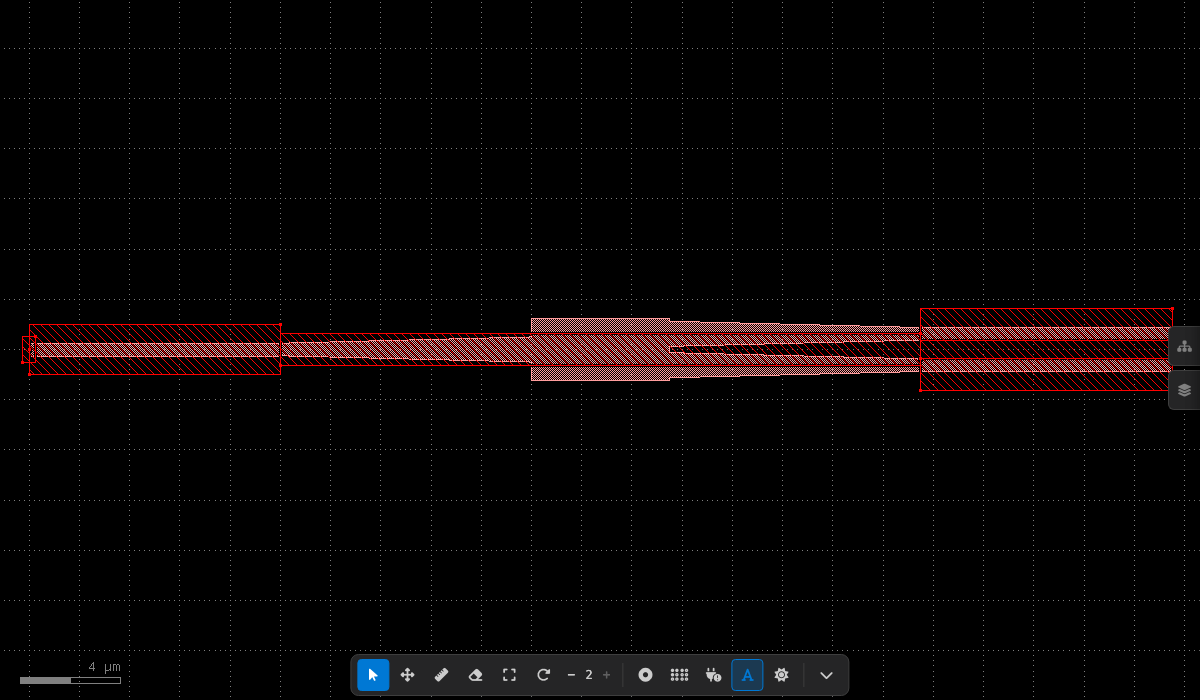
When all instances are correctly connected and match the schematic, the LVS check reports zero findings. Port markers appear white (no errors) and all instance boxes are in contact:
Failing LVS
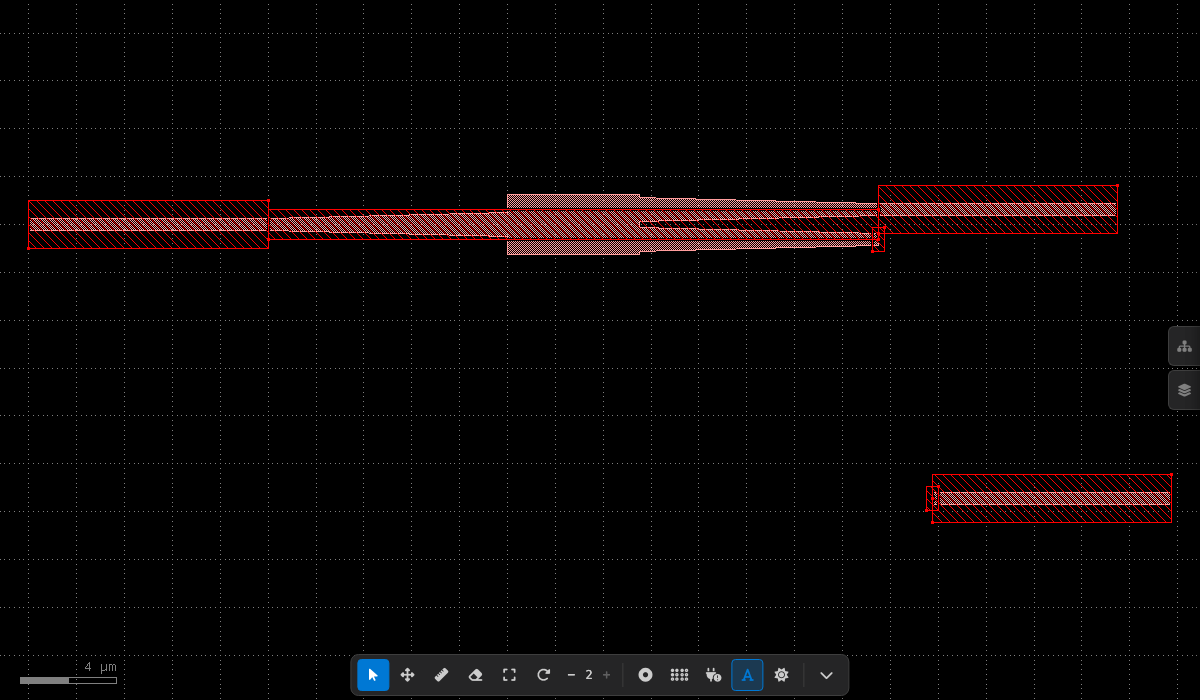
When a connection is broken — for example, an output waveguide displaced from its expected position — the affected instance appears isolated and the viewer highlights open ports and unknown nets:
Short detection
A short occurs when two electrically distinct nets share a polygon on the same conductive layer — for example, two independent M3 wires that accidentally overlap. Crossing markers in the viewer indicate where the overlap occurs:
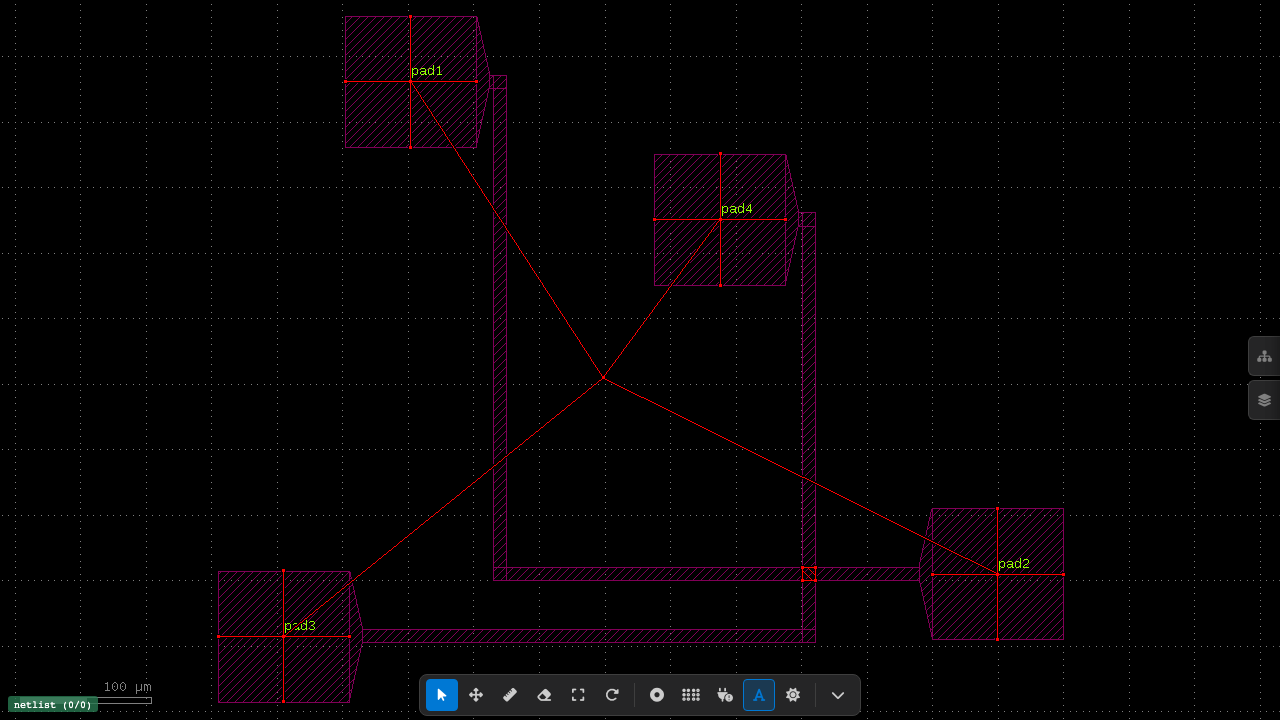
Which layer pairs are checked for shorts is determined by the PDK's connectivity table — no manual layer configuration is needed. Cross-layer shorts through vias (e.g. M1 ↔ VIA ↔ M2) are also detected automatically.
Open port detection
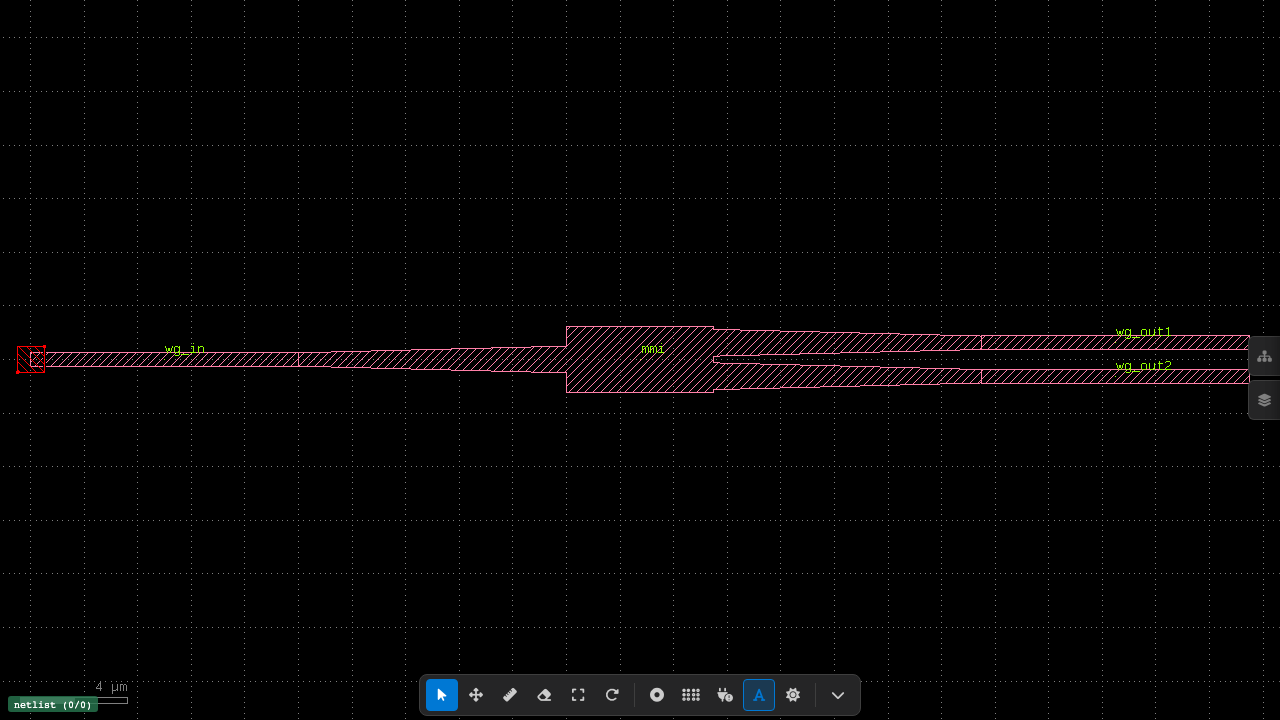
A port that exists in the layout but is not declared in the schematic's ports: block is flagged as an open. In the example below, the red box at the left marks an open port on the input waveguide:
Cross-layer short detection
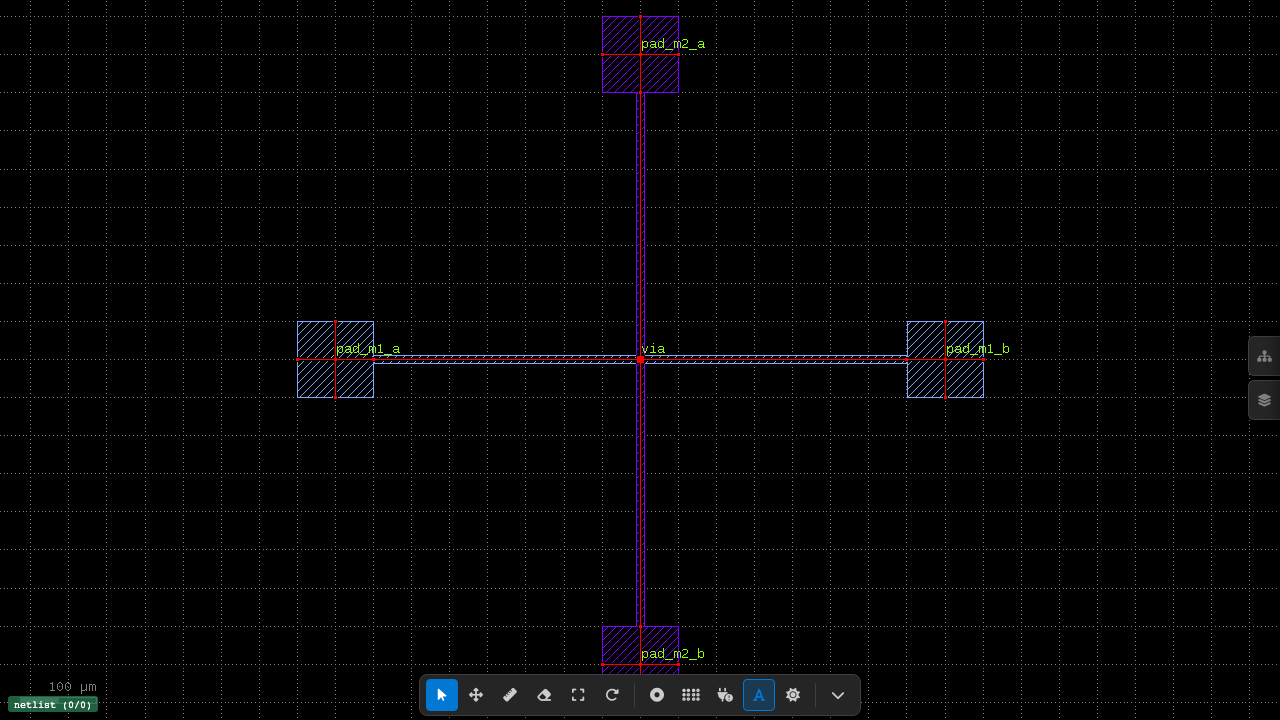
For multi-layer designs where metal layers connect through vias, LVS checks for shorts across connected layers (e.g. M1 ↔ VIA ↔ M2). In this example, M1 and M2 pads are connected through a center via — markers show where the via creates a cross-layer short between two nets that should remain independent:
Error types
Elvis uses the following hierarchical error categories:
| Error | Meaning |
|---|---|
LVS.instance.missing_in_layout |
Schematic instance not found in the GDS layout |
LVS.instance.missing_in_schematic |
Layout instance not in the schematic (and not routing) |
LVS.instance.component_mismatch |
Instance found but uses the wrong component type |
LVS.net.missing_in_layout |
Schematic connection not found in the layout |
LVS.net.missing_in_schematic |
Extra connection in layout not declared in schematic |
LVS.port.missing_in_layout |
Top-level schematic port absent from the layout |
LVS.port.missing_in_schematic |
Top-level layout port not in the schematic |
LVS.port.mismatch |
Port connects to a different instance port than expected |
LVS.open |
Dangling port — not connected and not a top-level port |
LVS.short |
Polygon overlap between electrically distinct nets |
LVS engine
GDSFactory+ uses elvis as its LVS engine — no configuration is needed. Elvis automatically reads layer connectivity and short-detection rules from the active PDK and produces .lyrdb report files viewable in the GDS viewer.
Programmatic API
You can run LVS directly from Python:
from gdsfactoryplus.check.lvs import check_lvs

xml = check_lvs(
    gds_path="build/gds/lvs_pass.gds",
    schematic_path="gpdk/samples/lvs_pass.gsch",
    _pdk_qualified_name="gpdk",
    project_root=".",
)
The return value is the raw .lyrdb XML string. You can parse it with xml.etree.ElementTree to enumerate findings, or write it to disk and open it in the GDS viewer alongside the layout.
For a full walkthrough with multiple example circuits, see the LVS Examples notebook.
For the full SDK reference, see the Python SDK reference.