Getting Started with ChipMonk
ChipMonk is an AI assistant built into the GDSFactory+ VS Code extension that helps you design components, validate and fix errors, and even resolve issues with the GDSFactory+ environment.
Enabling the Agent
ChipMonk must be enabled for your organization. Organization administrators can enable or disable the agent feature through the GDSFactory+ customer portal.
The first time you open the agent, you will be asked to accept the Terms & Conditions. This is a one-time step per user.
Note
If the agent button is not visible, check with your organization admin that the ChipMonk feature is enabled in the portal.
Turning Off AI Features
Organization administrators can turn off AI features for everyone in the organization:
- In the GDSFactory+ customer portal, select Organization in the sidebar.
- Open the Settings tab.
- Under AI Features, turn the toggle off.
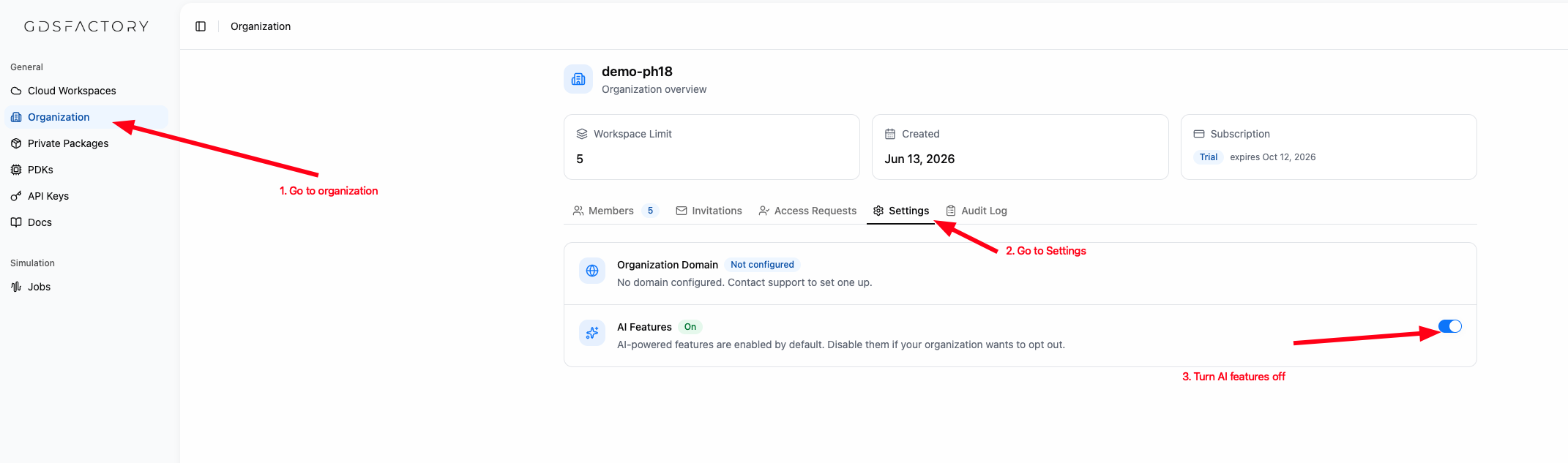
When AI features are off, members cannot use ChipMonk. Turn the toggle back on to make the feature available again.
Opening the Agent
To open ChipMonk, select the agent icon from the GDSFactory+ sidebar.
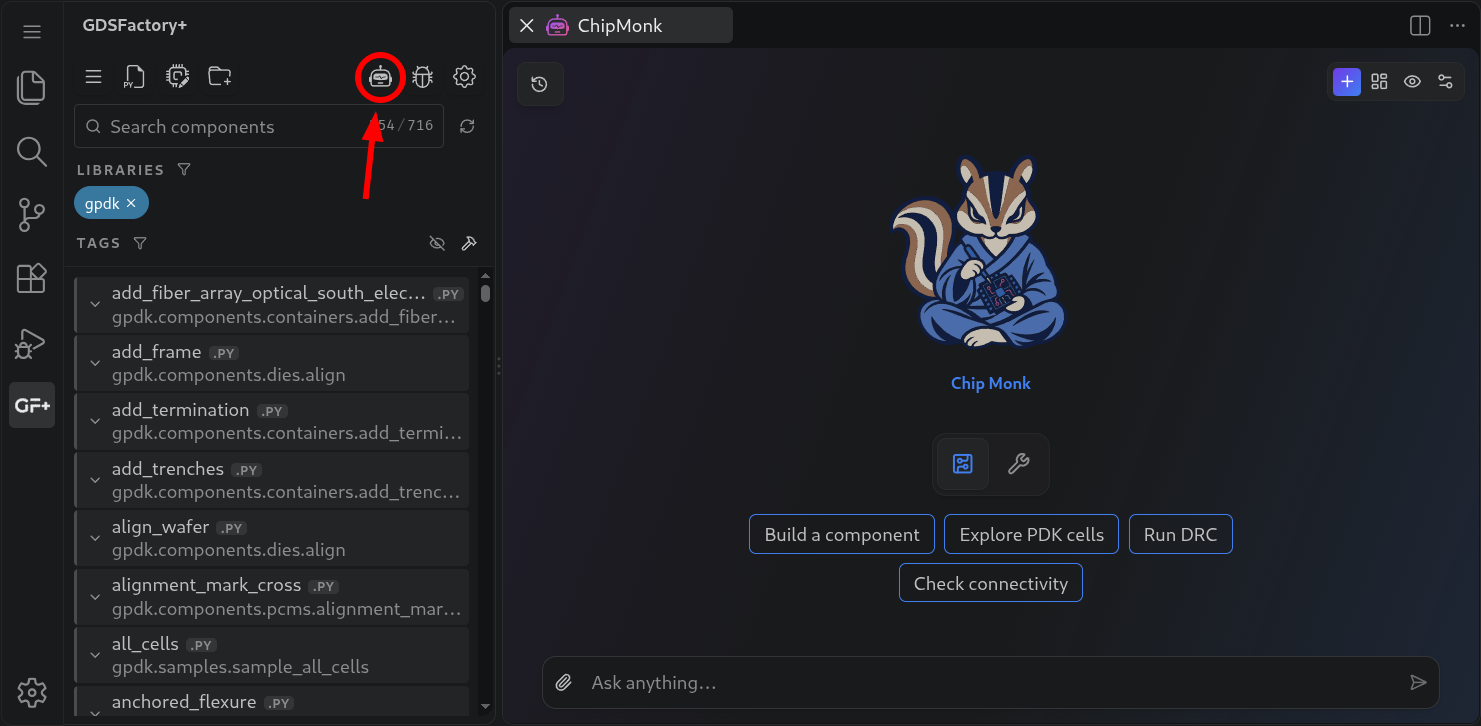
You can also open the agent via:
- Status bar: Click GF+ Agent [Beta] in the bottom-right status bar
- Command palette: Run
GDSFactory+: Open Agent - Configuration panel: Click Ask Assistant when you see setup errors
- Issue report: Click Open Assistant in the issue report form
The agent opens as an editor tab in your main editor area.
Warning
ChipMonk is powered by a large language model. While it is a powerful tool, it can make mistakes. Always review the code, configurations, and actions the agent produces before using them in your designs. You are responsible for verifying that any changes meet your project's requirements and design rules.
Using Your Own API Key (optional)
The agent works out of the box - no setup required. It uses your GDSFactory+ subscription to provide AI credits at no extra cost.
If you prefer to use your own OpenAI or Anthropic API key instead, open the GDSFactory+ Settings tab, then paste your key in the corresponding field and click Save Key.
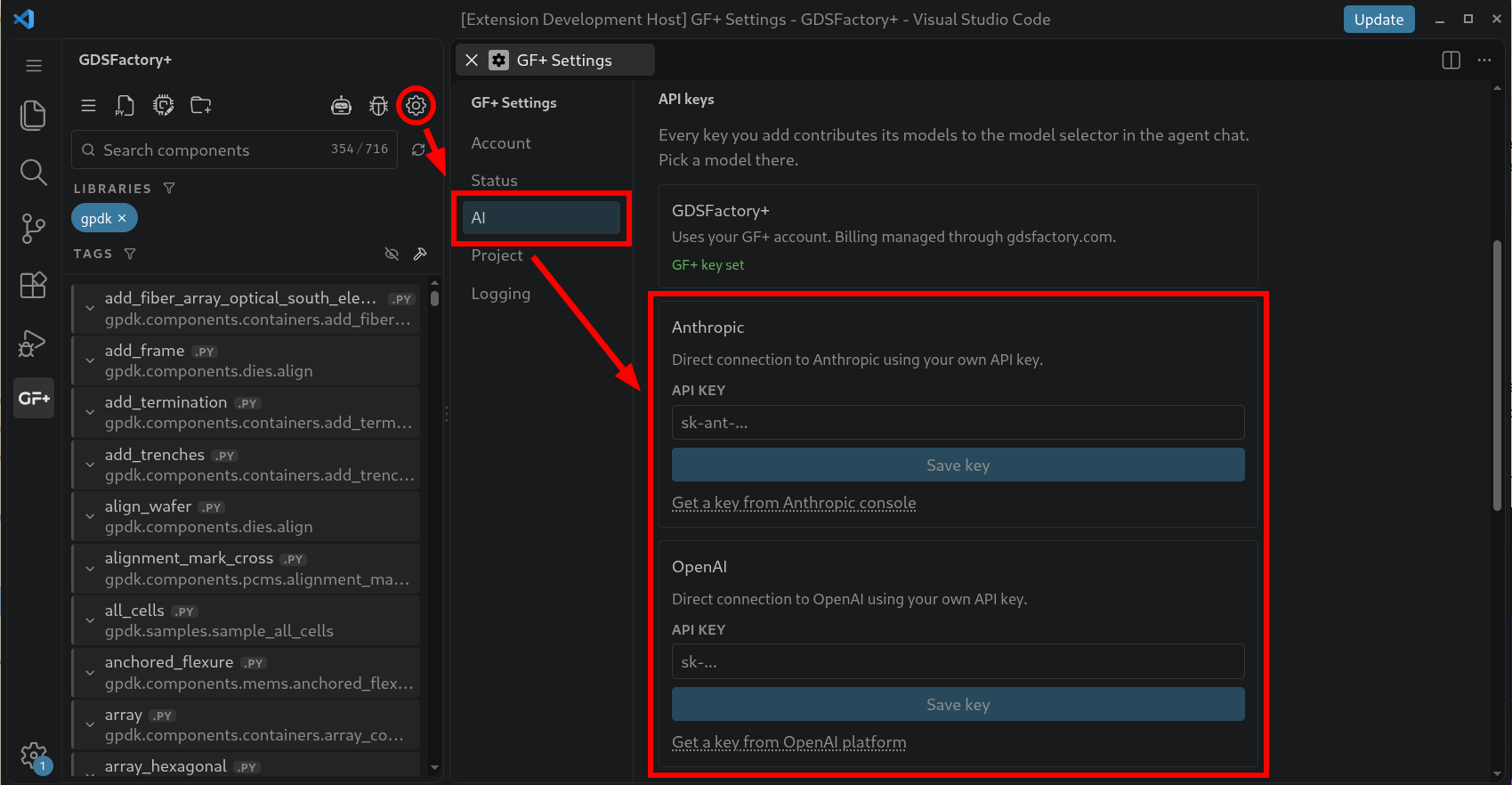
When using your GDSFactory+ subscription, the Settings tab also shows your token budget - a usage bar with tokens used, cap, and remaining for the current period.
Learn More
- Build a Component - Design a photonic component with the agent
- Troubleshooting - Common issues and solutions