Step 1: Create a Parametric Cell
Let's create and customize a cell with Python code, and see its changes in the graphical GDS viewer. We'll start with a hard-coded cell, and then add parameters to make it a parametric cell.
The following videos go through the same steps. The written guide below contains the most up-to-date instructions.
Create your first cell
-
In the Visual Studio Code sidebar, select the
GF+ tab. This will open a menu with the project components at the top (Project) and the PDK components at the bottom (Base PDK). The Process Design Kit (PDK) includes a set of predefined components provided by the foundry. In this example, we are using the UK-based foundry Cornerstone, which offers an open-source PDK.
-
In the project components section (Project), hover over the word project, then click the button that has a file icon with a + sign on it. Select
Create Python Layout, then typehellofor the name and pressenter. This will create a Python file namedhello, and open itsCode Viewin a new tab.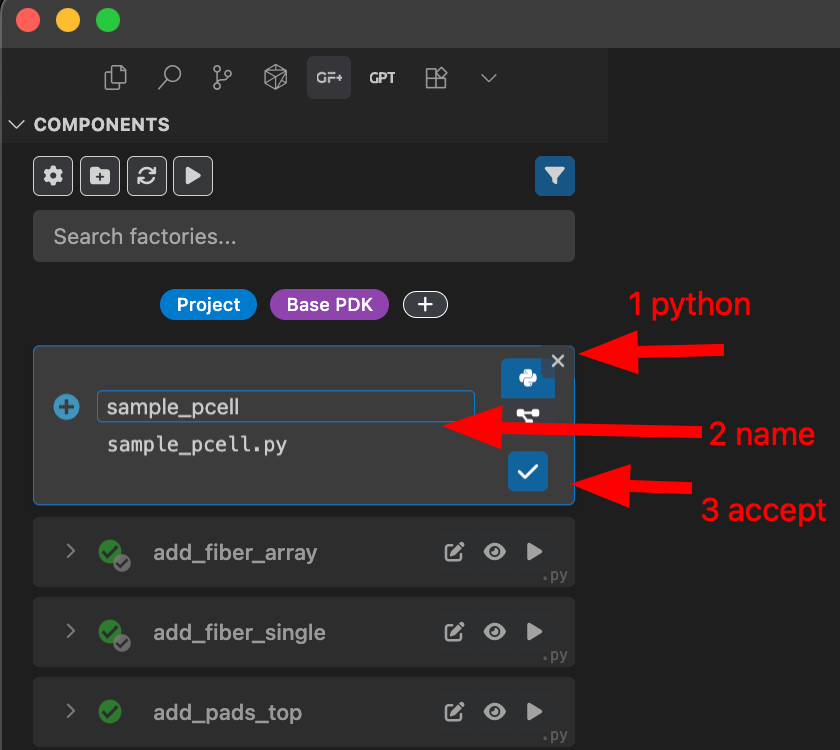
-
Replace the starter code imports with the following code:
import gdsfactory as gf @gf.cell def sample_pcell() -> gf.Component: c = gf.Component() ref1 = c.add_ref(gf.components.rectangle(size=(10, 10), layer=(1, 0))) ref2 = c.add_ref(gf.components.text("Hello", size=10, layer=(2, 0))) ref3 = c.add_ref(gf.components.text("world", size=10, layer=(2, 0))) ref1.xmax = ref2.xmin - 5 ref3.xmin = ref2.xmax + 2 ref3.rotate(90) return c -
In the right top bar of the tab, click the eye button. Then click
Show GDSto open theGDS View.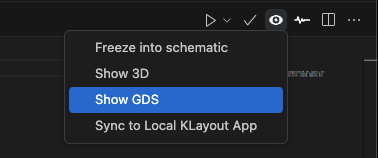
You should see something like the following image, where the Code View of the Python cell is on the left, and the GDS View (CAD file view) is on the right.
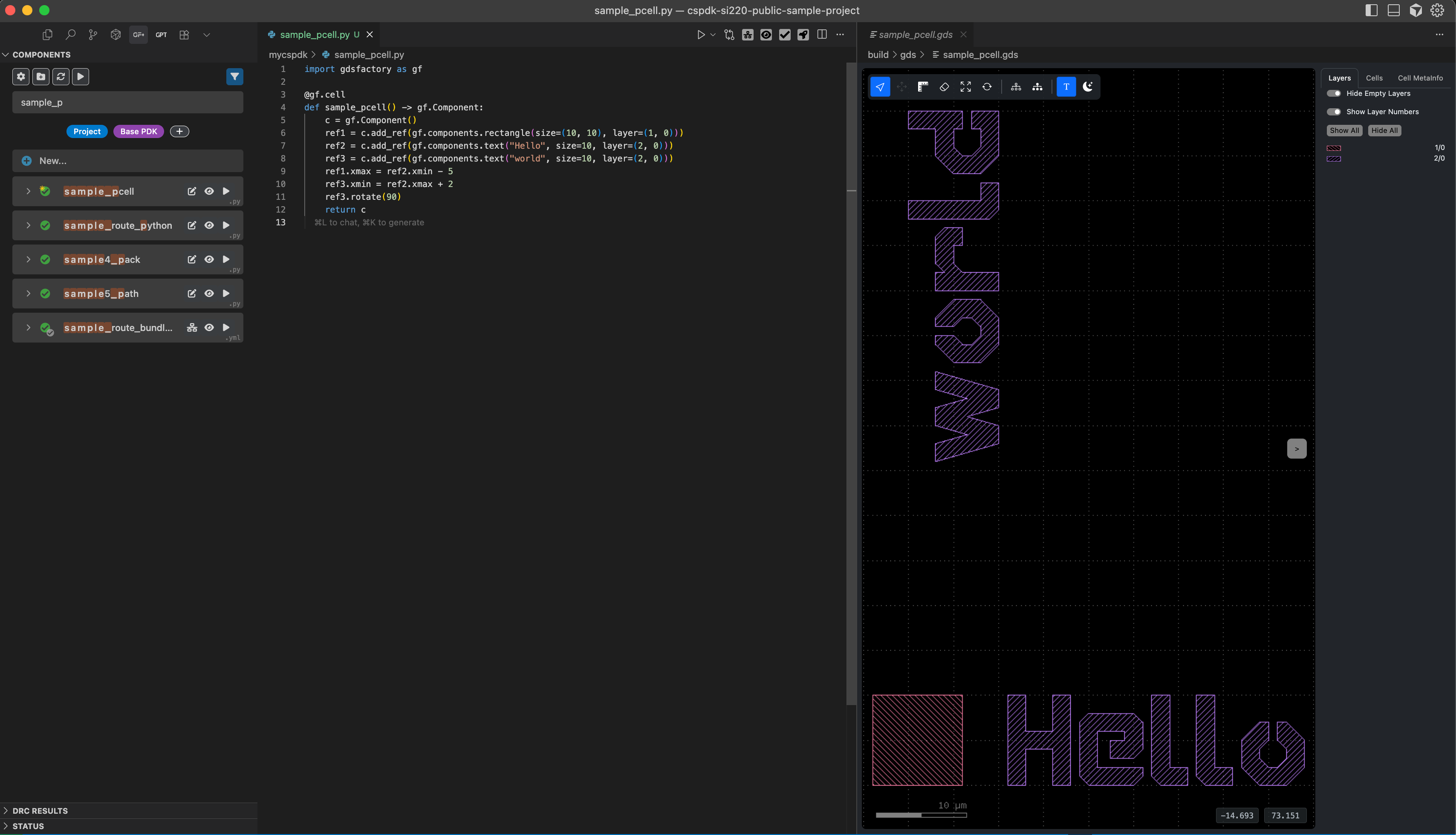
In the Code View, replace
worldwith your name to personalize your Python cell, and observe the changes in the GDS View.
Make it parametric
The previous example used a fixed cell (with no input parameters). Now, let's define a parametric cell where you can modify input parameters dynamically. For instance, we can customize the text name and size by modifying the code as shown below:
@gf.cell
def sample_pcell(size=20, name="world") -> gf.Component:
    c = gf.Component()
    ref1 = c.add_ref(gf.components.rectangle(size=(10, 10), layer=(1, 0)))
    ref2 = c.add_ref(gf.components.text("Hello", size=size, layer=(2, 0)))
    ref3 = c.add_ref(gf.components.text(name, size=size, layer=(2, 0)))
    ref1.xmax = ref2.xmin - 5
    ref3.xmin = ref2.xmax + 2
    ref3.rotate(90)
    return c
Experiment by changing the name and size parameters to see how they affect the output. 🚀
Bonus: Use the AI Agent
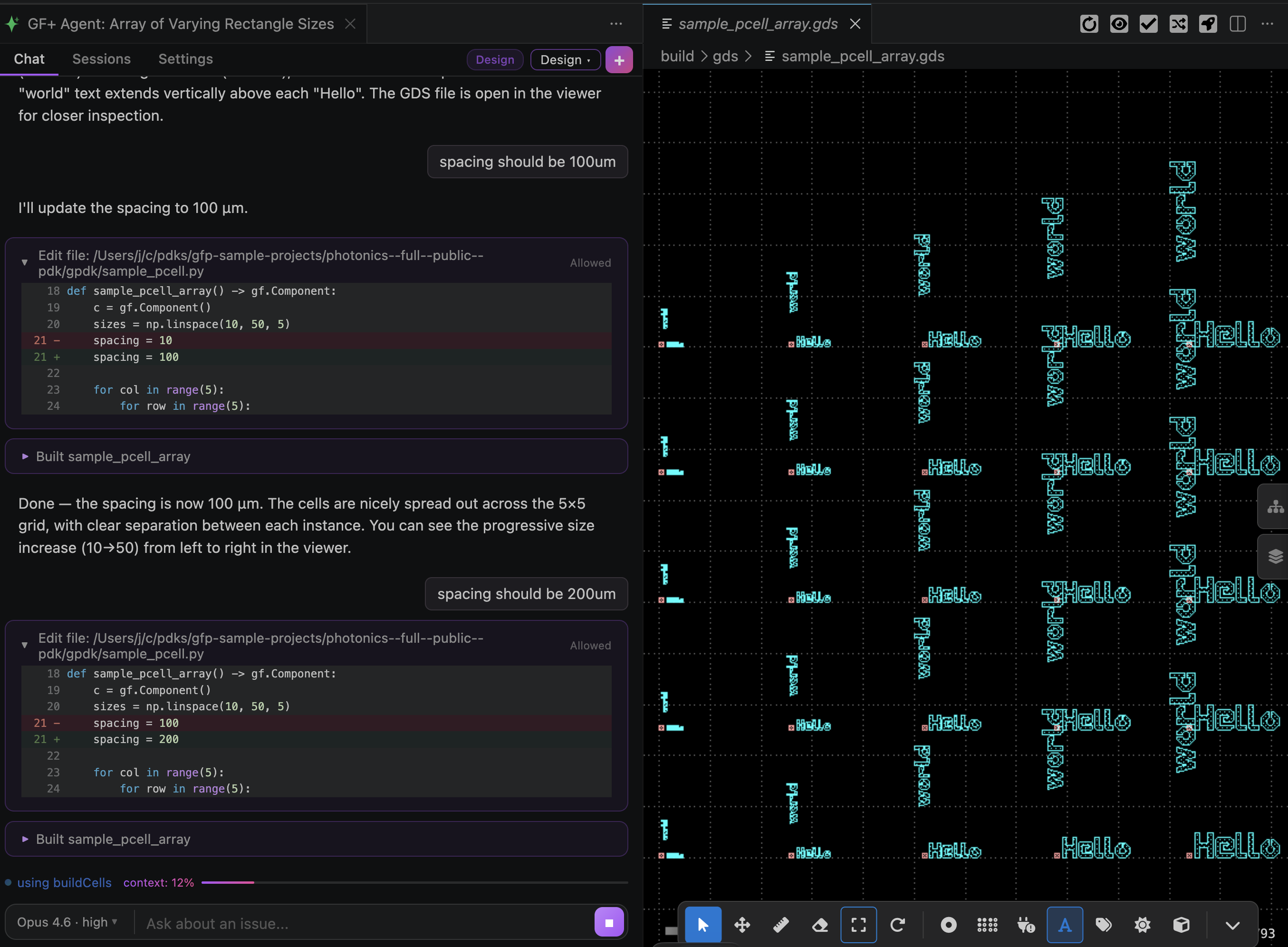
Ask the agent to create an array of texts of different sizes:
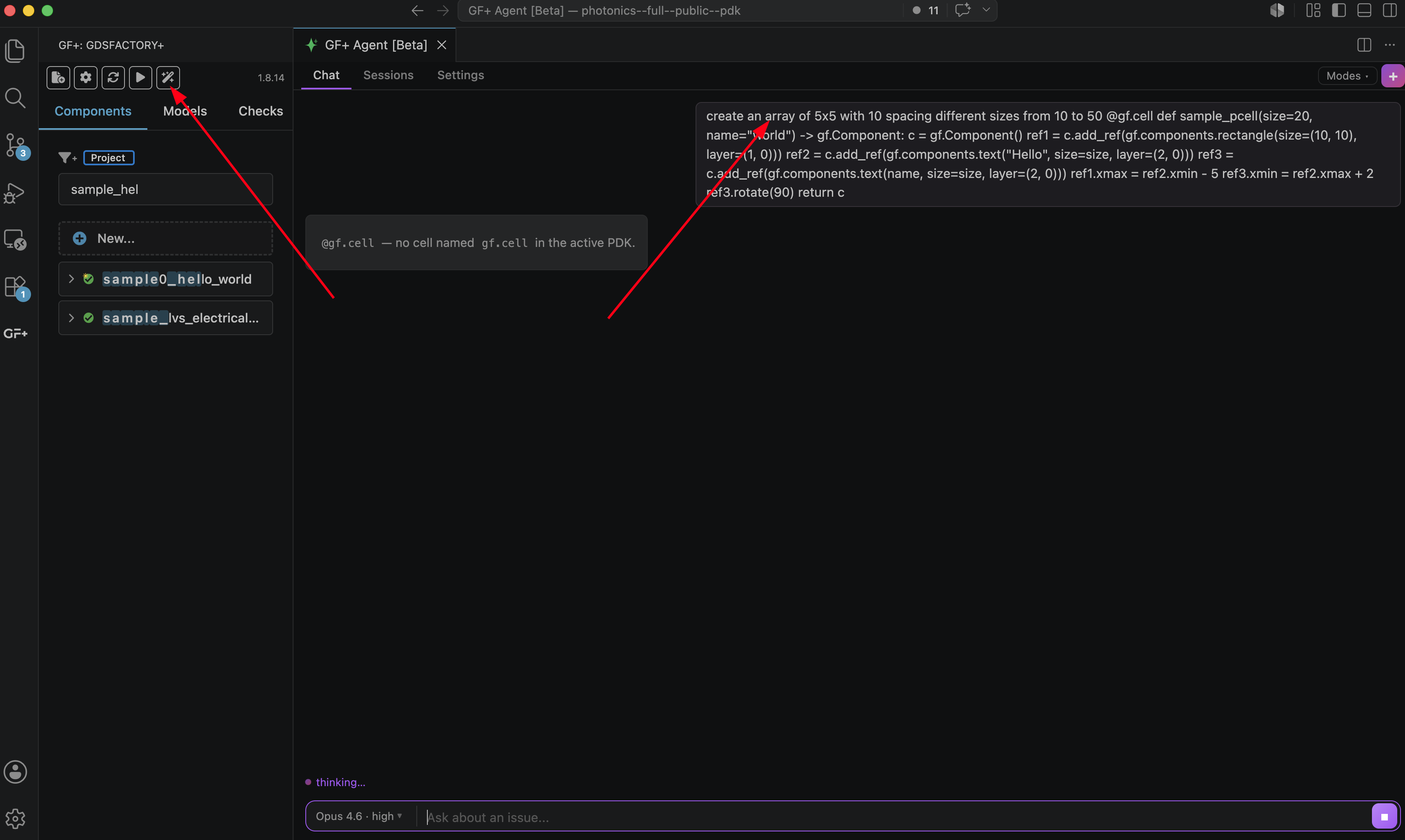
Iterate until you're happy with the result:
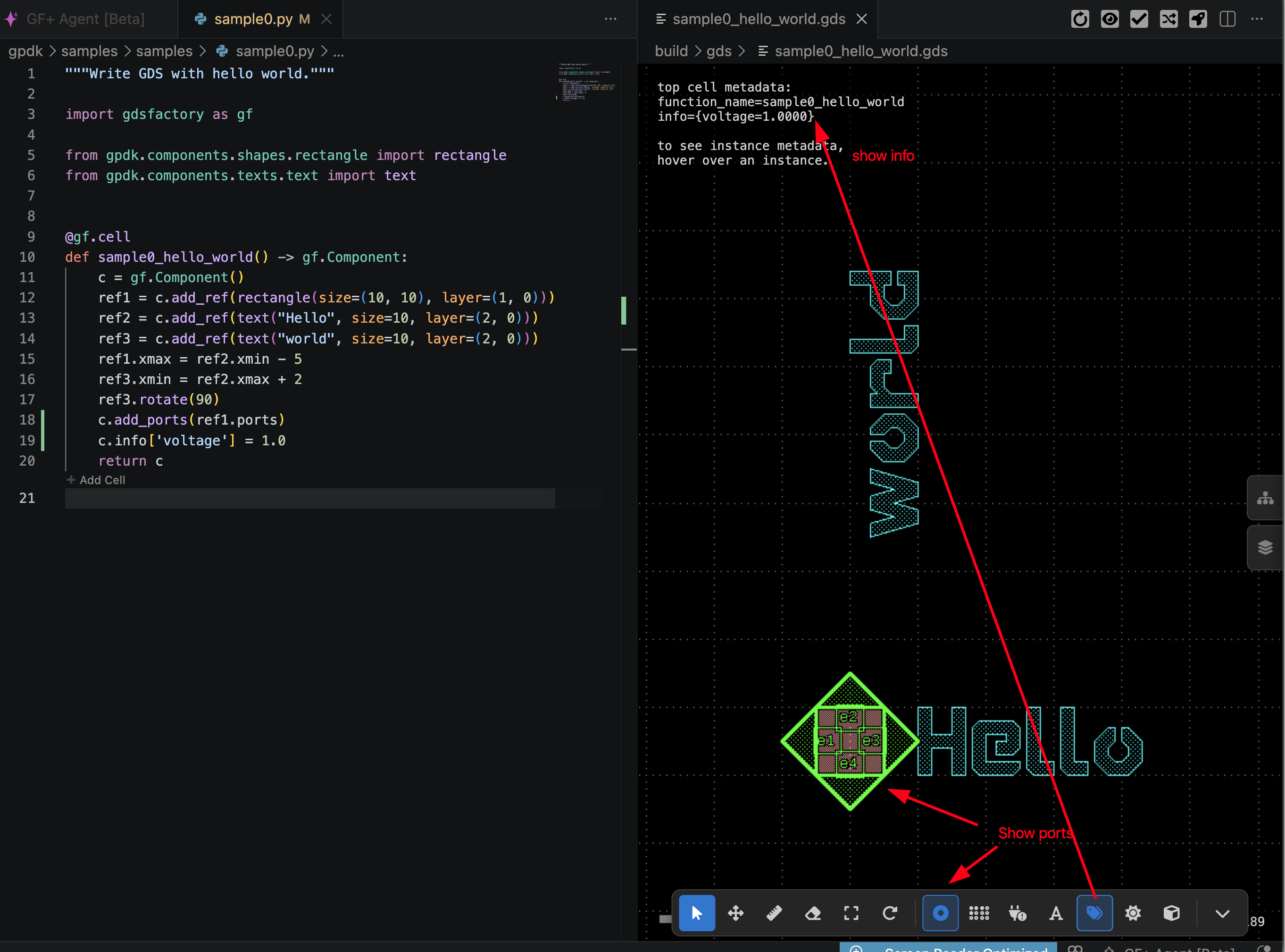
You can also ask the agent to add ports and test information:
🎉 Congratulations! You have successfully created your first custom GDSFactory cell!