Cloud Setup
Set up a cloud workspace to start designing chips with GDSFactory+ in your browser—no installation required. Work in a cloud-hosted VSCode environment with everything pre-configured.
Prefer local installation? See the Local Installation guide instead.
Step 1: Log In to the Customer Portal
Access the GDSFactory+ customer portal at https://plus.gdsfactory.com/.
If you're part of an organization:
- Your organization admin must first invite you through the portal
- Use the credentials from your invitation email to log in
Don't have an account?
- Ask your organization admin to send you an invitation, or
- Sign up here to start a new organization
- Check out Video Tutorials to learn how to manage your organization's GDSFactory+ account, invite users, and create cloud workspaces
Step 2: Connect Your GitHub Account (Optional One-Time Setup)
Connect your GDSFactory+ account to GitHub or GitLab to edit your projects in cloud workspaces.
Requirements:
- You must be an owner of a GitHub organization
- Your GitHub organization must exist before connecting
Step 3: Create Your First Workspace
Step 3.1 Create the Workspace
- Navigate to Workspaces in the left sidebar
- Click + New Workspace
- Enter a name for your workspace. We recommend:
firstname-lastname(e.g.,john-smith) - Select Project Type:
template: cspdk-si220-public-sample-project. Or open a project from your GitHub / GitLab account by selecting the appropriate option and choosing your repository. - Click Create
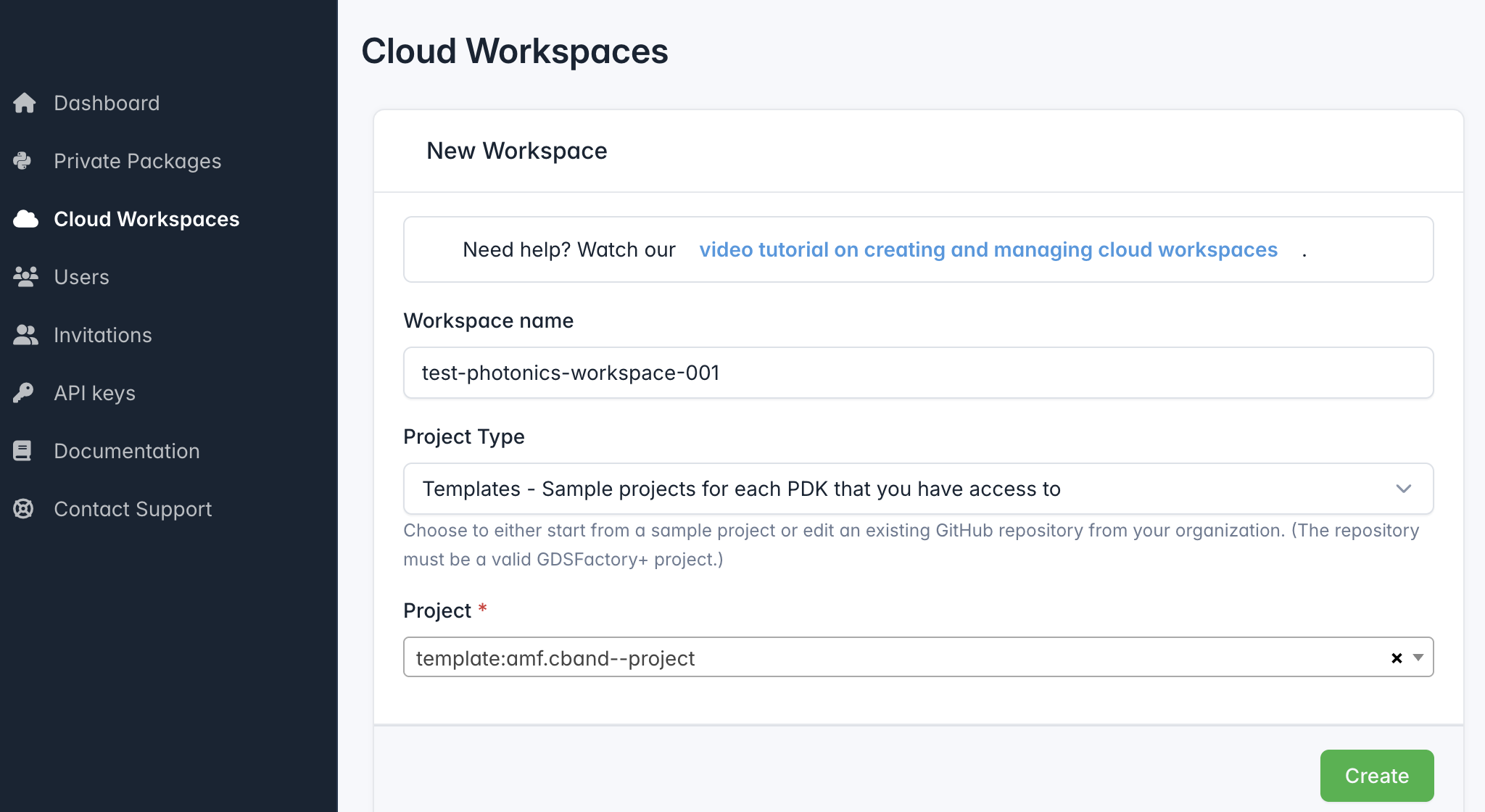
Step 3.2 Wait for Setup
Your workspace will appear in the dashboard with a setup message in the link field.
Setup takes about 1 minute. Once the link appears, click it to open your workspace.
Step 3.3 Open the Workspace
You'll see a VSCode interface in your browser.
Ignore the port forwarding popup in the bottom left.
Click the GF+ button in the left sidebar to open the GDSFactory+ extension panel.
Next Steps
You're all set! Now you can:
Get started:
- Follow the Quickstart Guide to design your first circuit using the Cornerstone PDK
Use a different PDK:
- Learn about working with PDKs to explore other foundry PDKs
Watch video tutorials:
- Check out Video Tutorials for hands-on guides
Need help?
- Join the GDSFactory Community Slack